Obsidian 2026 Feiniu NAS Sync Tutorial: WebDAV + Remotely Save Setup Guide
This Feiniu NAS sync tutorial uses FN-NAS WebDAV and FN Connect as an example to show how to configure Obsidian Remotely Save on desktop and mobile.
In the previous article, we covered how to configure Remotely Save with Tencent Cloud COS: Obsidian Remotely Save sync tutorial.
That setup uses Tencent Cloud COS as a cloud relay. Your computer uploads the Obsidian vault to the cloud, and your phone downloads it from there.
If you already have a Feiniu NAS, you can move this relay back to your own device. Feiniu NAS, often referred to as FN-NAS, supports WebDAV. With FN Connect remote access enabled, Remotely Save can sync your Obsidian vault to the NAS at home.
The benefit is straightforward: you do not need to open an object storage service, create a bucket, or manage cloud access keys. As long as FN Connect is enabled and your system version supports remote WebDAV access, you can start configuring it.
Check these first
Before starting, confirm three things.
First, your Feiniu system needs to support “allow WebDAV service access through FN Connect”. If you cannot find this switch in the admin panel, check your fnOS version first.
Second, install the Remotely Save plugin in Obsidian. If you have not installed it yet, see this guide first: Obsidian plugin installation tutorial.
Third, test with a temporary vault first. WebDAV sync can create, overwrite, and delete remote files, so do not connect your main vault at the very beginning.
In this example, the remote folder is called:
测试用You can replace it with your own Obsidian vault name. It is best to keep the remote folder name consistent with the vault name, so future troubleshooting is easier.
Configure Feiniu
First, enable remote WebDAV access in the Feiniu admin panel.
Go to “System Settings”, find “Remote Access” on the left, and turn on “FN Connect”.
Then click “Advanced Settings” and make sure “Allow WebDAV service access through FN Connect” is enabled.
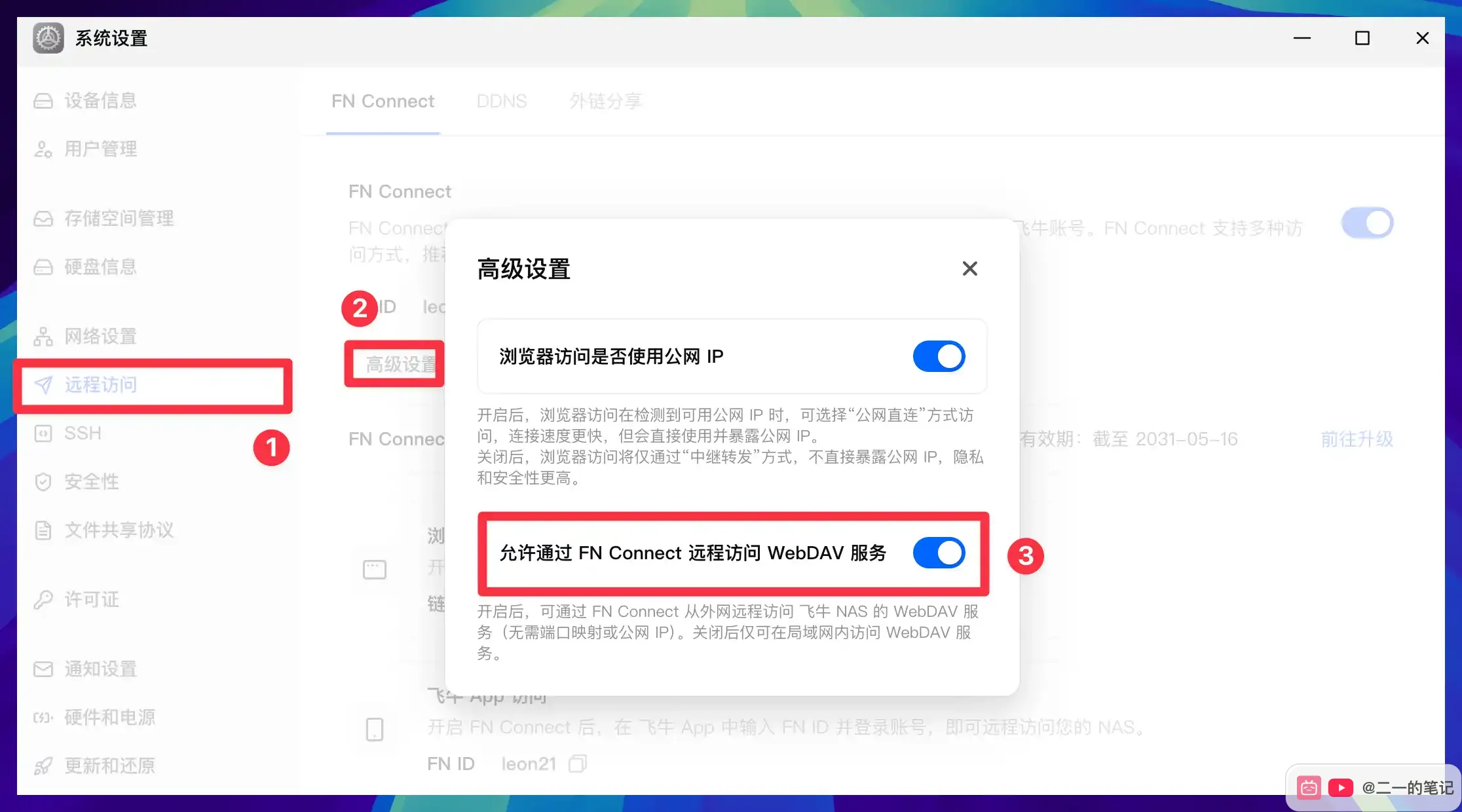
This switch matters because enabling FN Connect alone is not enough. FN Connect must also be allowed to access WebDAV. Otherwise, you may be able to access the Feiniu admin panel from outside your home network, but Remotely Save will still fail to connect to WebDAV.
Next, go to “File Sharing Protocol” and switch to the “WebDAV” tab.
Make sure “WebDAV Service” is enabled. The page will show two local access addresses:
http://your Feiniu LAN IP:5005
https://your Feiniu LAN IP:5006
These two addresses are only suitable inside the same local network. This tutorial uses FN Connect for remote access, so look at the “FN Connect” address near the bottom of the page.
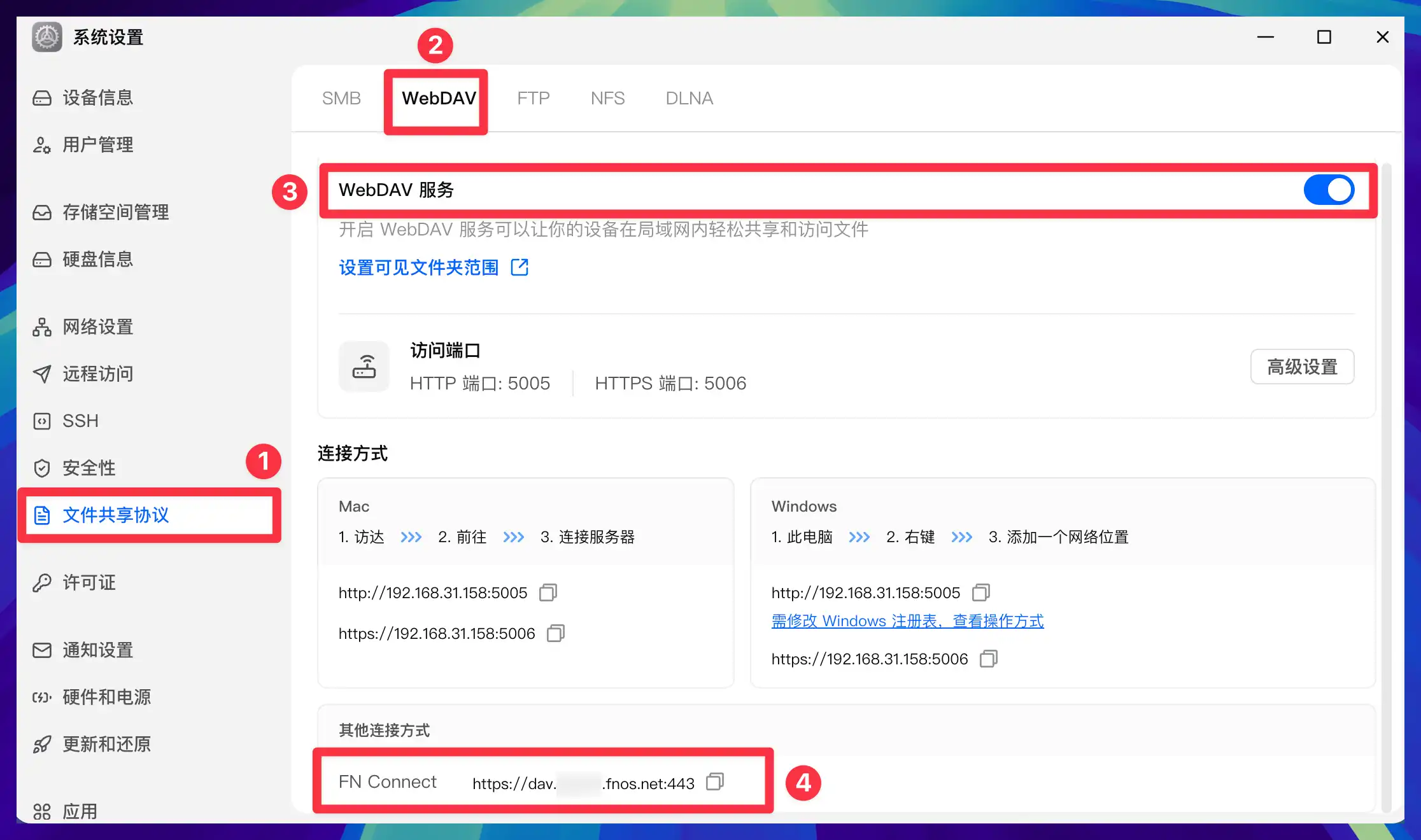
You will see an address similar to this:
https://dav.xxxx.fnos.net:443Use this as the server address in Remotely Save later.
Note that xxxx is the FN Connect name. It is not necessarily your Feiniu login username. In Remotely Save, the username should be your Feiniu login username, not this part of the domain.
Now open Feiniu “File Manager”.
Under “My Files”, create an empty folder. In this example, I created:
测试用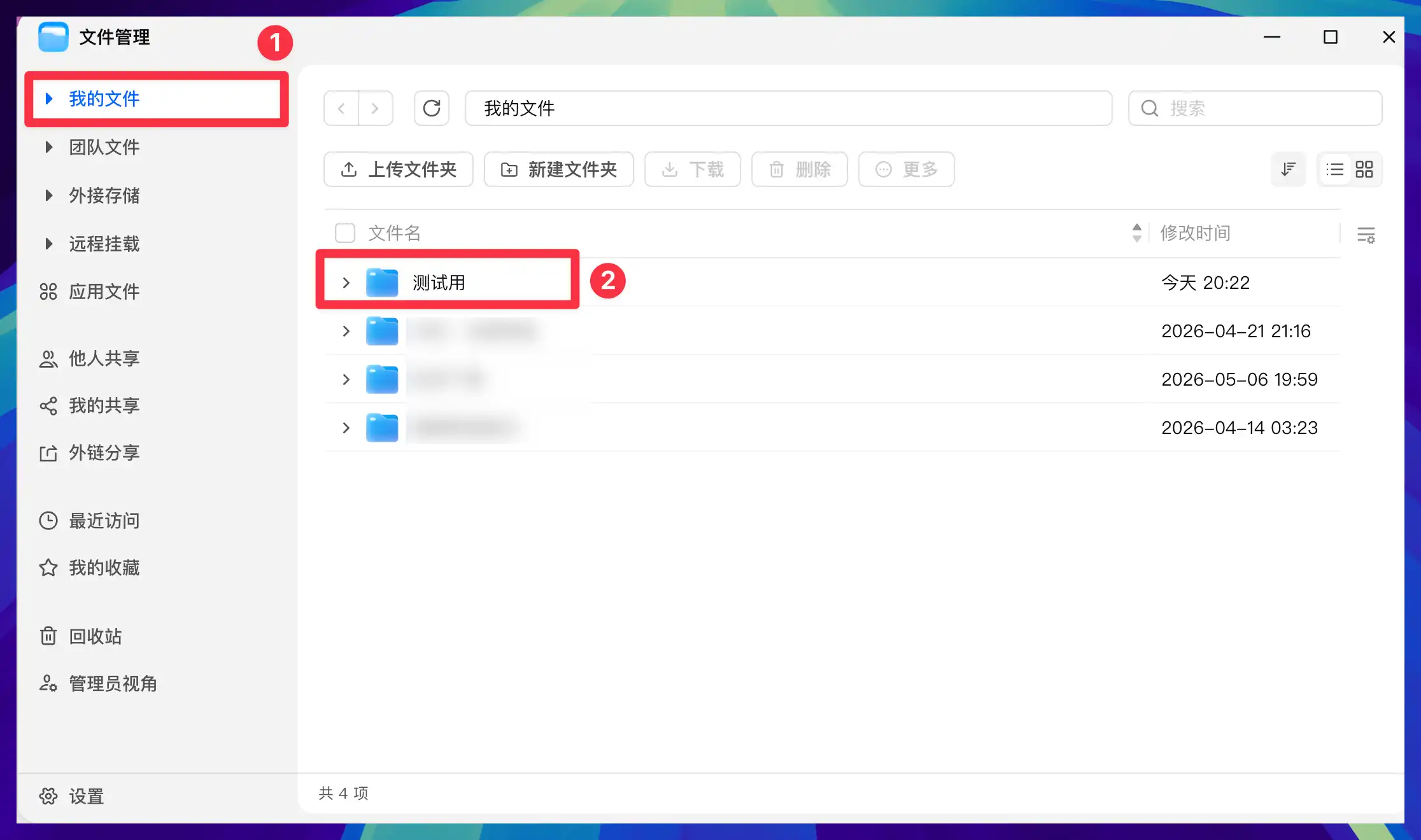
Remotely Save will sync into this folder.
Creating the folder in advance keeps things cleaner. Remotely Save has a “remote base directory” setting. After you fill in this folder name, the plugin will sync the current Obsidian vault into that remote folder instead of mixing multiple vaults directly under the WebDAV root.
The Feiniu side is now ready.
Configure Obsidian on desktop
Return to Obsidian and open the Remotely Save plugin settings.
For “Choose remote service”, select:
WebdavThen fill in the WebDAV information.
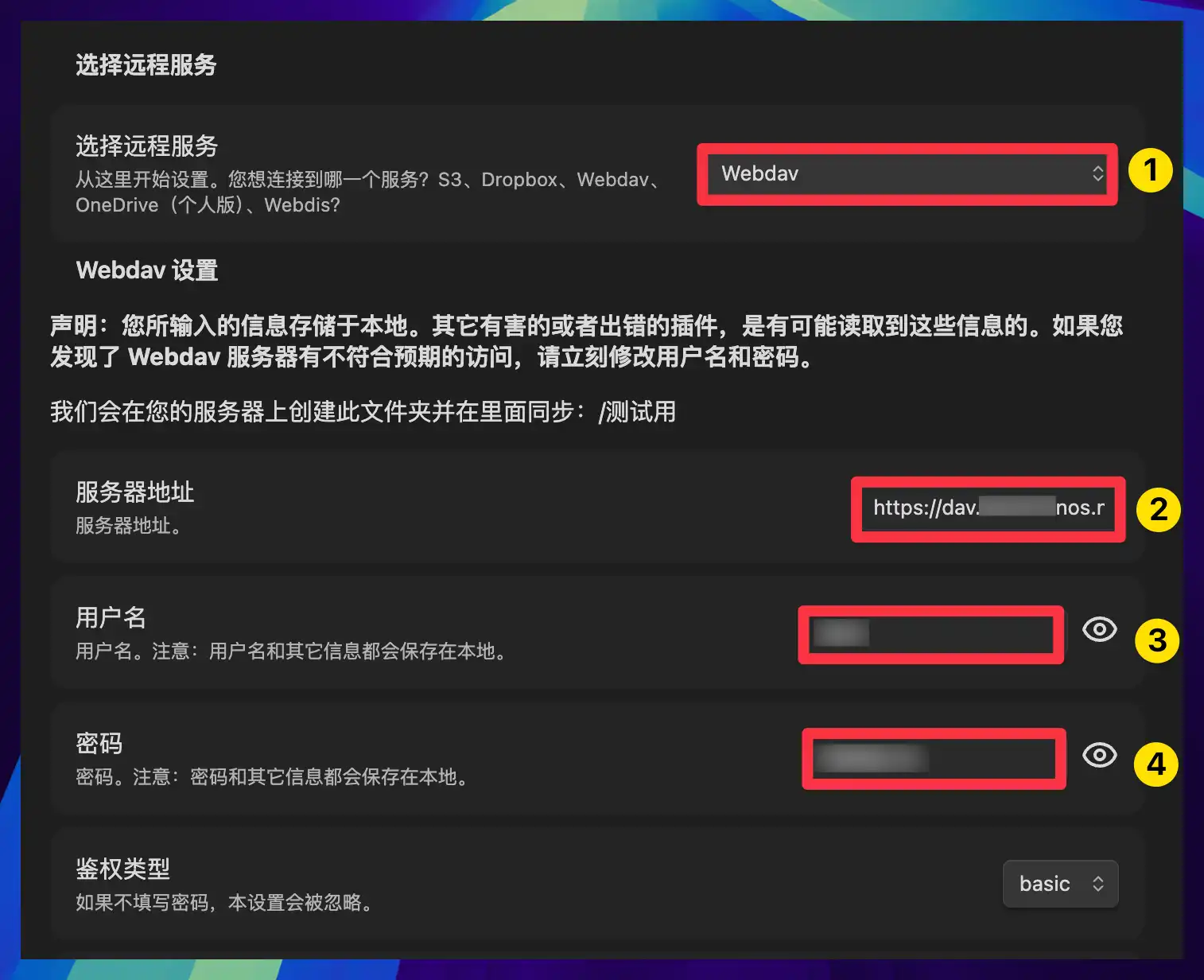
Use this information:
Server address: the FN Connect address at the bottom of the Feiniu WebDAV page
Username: your Feiniu login username
Password: your Feiniu login password
Authentication type: basic
Example server address:
https://dav.xxxx.fnos.net:443The screenshot is masked. When you configure your own setup, use the address shown in your Feiniu admin panel.
The username is the easiest field to get wrong.
Remotely Save needs your Feiniu login username. The xxxx part in the FN Connect address is only part of the domain, and it may not be your login username. If the username is wrong, the plugin may show:
401 UnauthorizedI ran into this during testing. With the wrong username, the check kept returning 401. After switching to the real Feiniu login username, the connection check passed immediately.
Next, find “remote base directory”.
Fill in the folder name you created in Feiniu File Manager:
测试用After filling it in, click “Confirm”.
With this setting, Remotely Save syncs into /测试用/ instead of the WebDAV root directory.
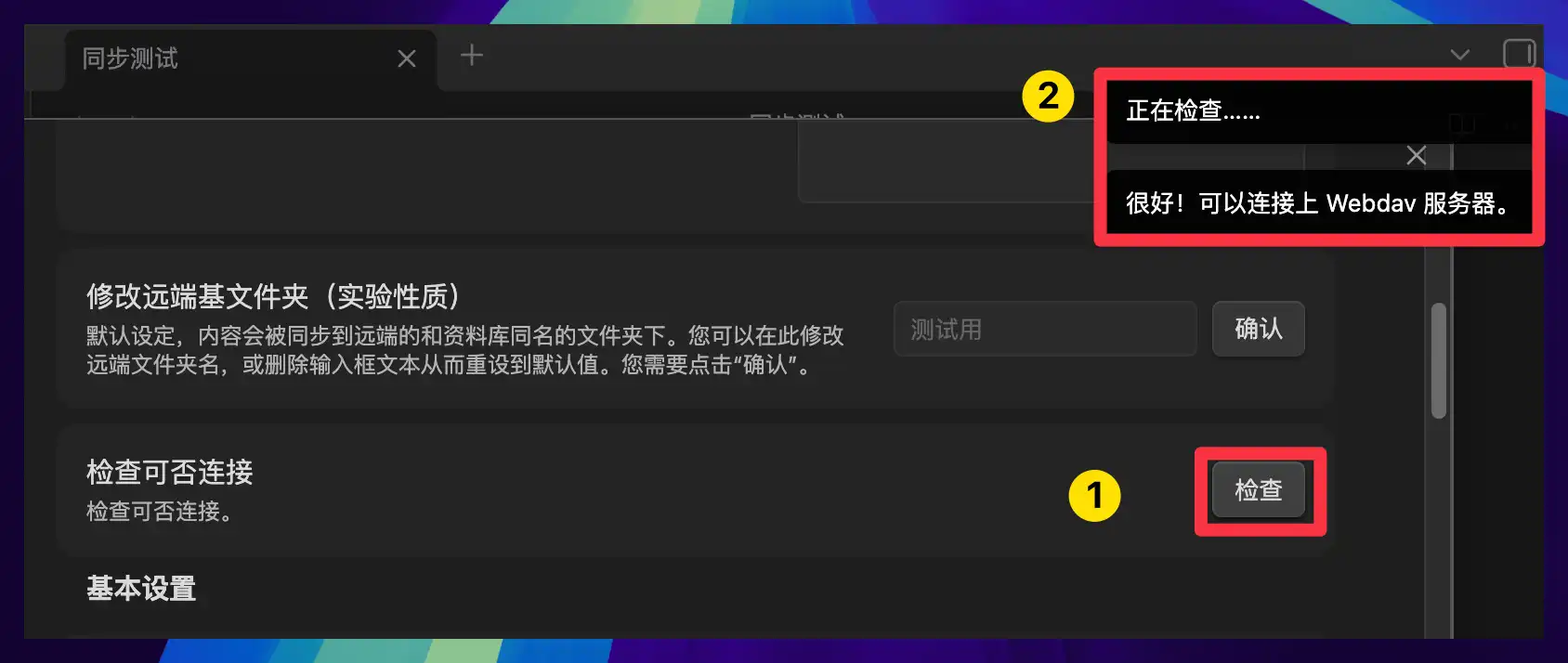
After confirming, find “Check connectivity” and click “Check”.
If you see this message in the top-right corner:
很好!可以连接上 Webdav 服务器。The desktop side has successfully connected to Feiniu WebDAV.
If you see 401 here, first check these three items:
- Whether the username is your Feiniu login username
- Whether the password is your Feiniu login password
- Whether the authentication type is
basic
401 can have more than one cause. Some cases are username or password errors. Some may be related to FN Connect’s WebDAV forwarding compatibility. Start by ruling out account and password issues first.
After the connection check passes, configure the basic sync settings.
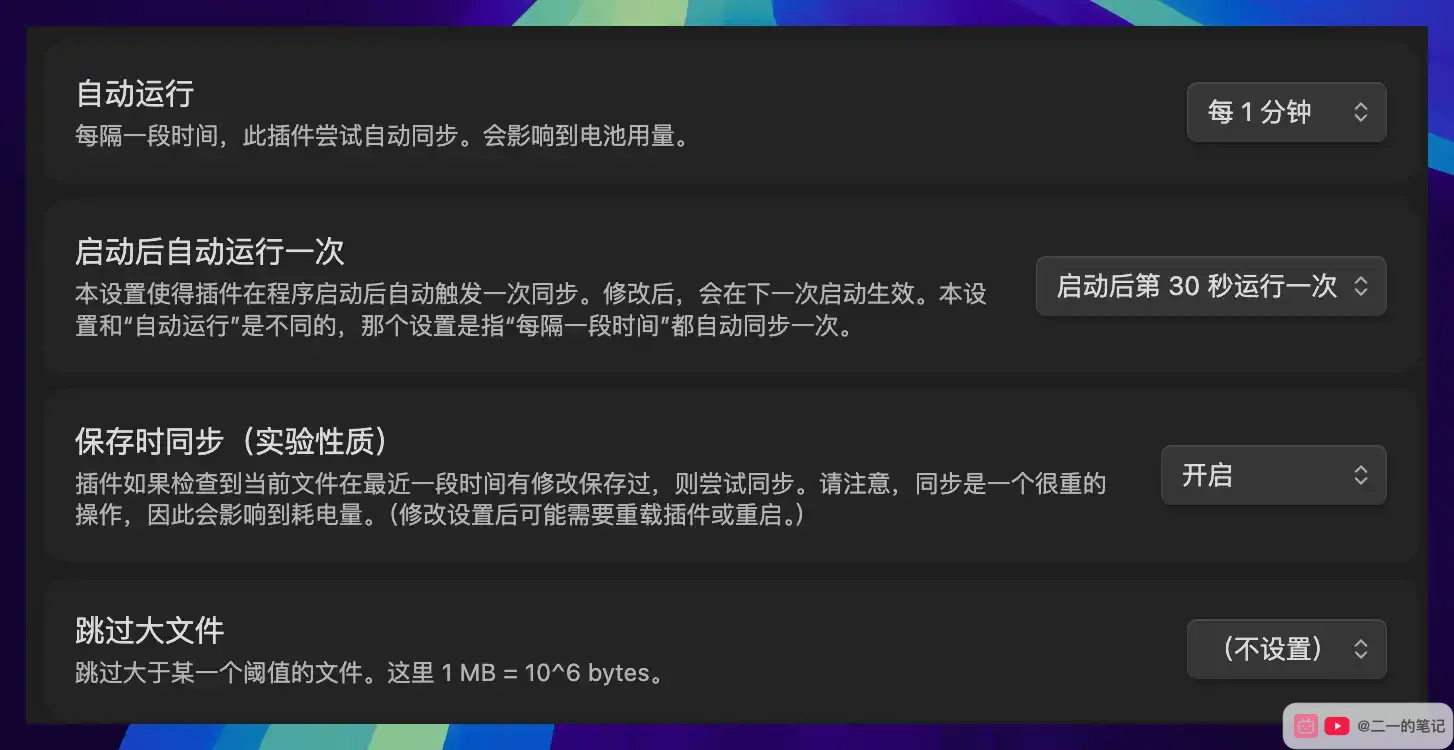
You can start with this setup:
Auto run: every 1 minute
Run once after startup: 30 seconds after startup
Sync on save: enabled
Skip large files: not set
These settings are basically the same as the Tencent Cloud COS setup. Use them to get the flow working first, then adjust based on your own usage.
For the first desktop test, create a simple note, for example:
同步测试Then click the Remotely Save sync button in the left sidebar.
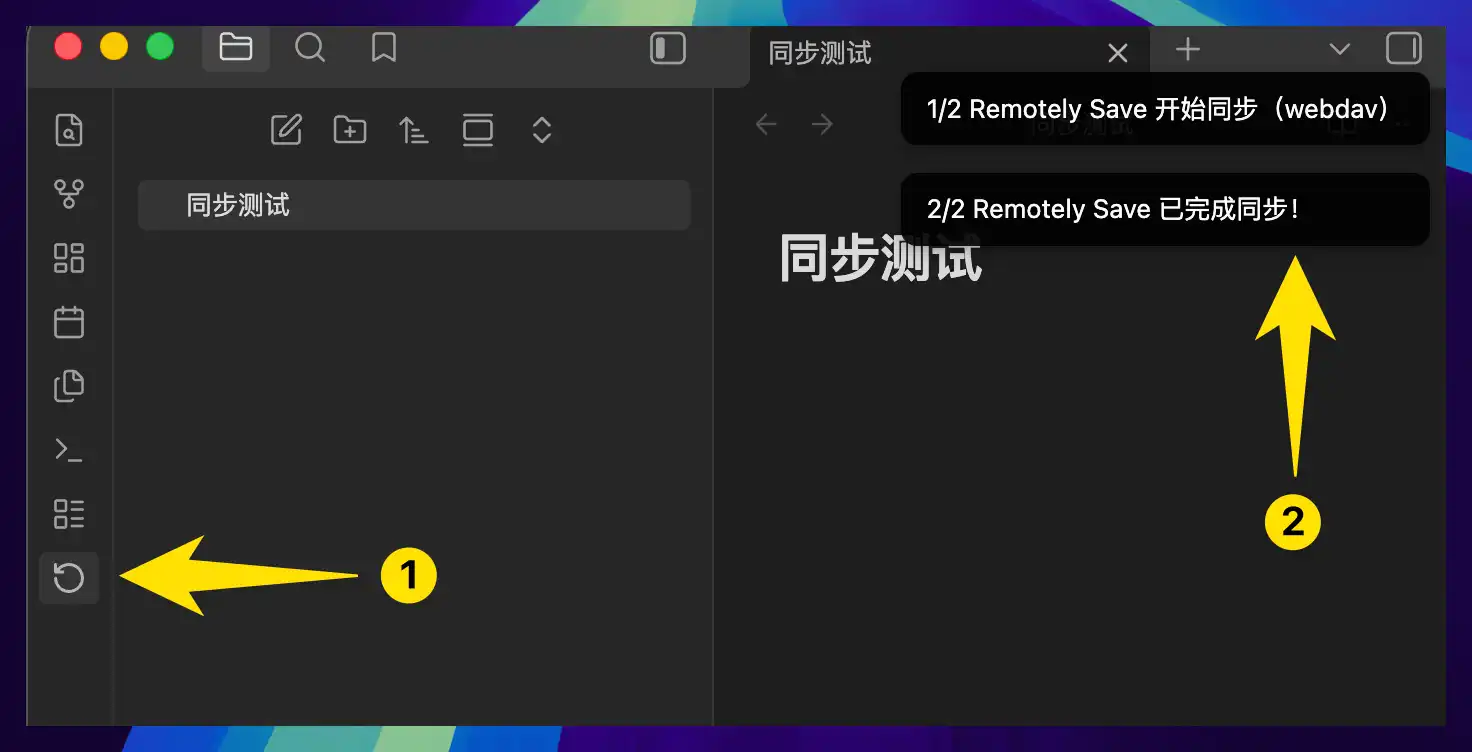
You should first see “Start syncing” and then “Sync completed” in the top-right corner. This means Remotely Save has completed one sync run.
But this only means the plugin completed its own sync action. To confirm the file really reached the Feiniu NAS, go back to Feiniu File Manager and check once.
Open the “测试用” folder you created earlier. You should see the test note synced there.
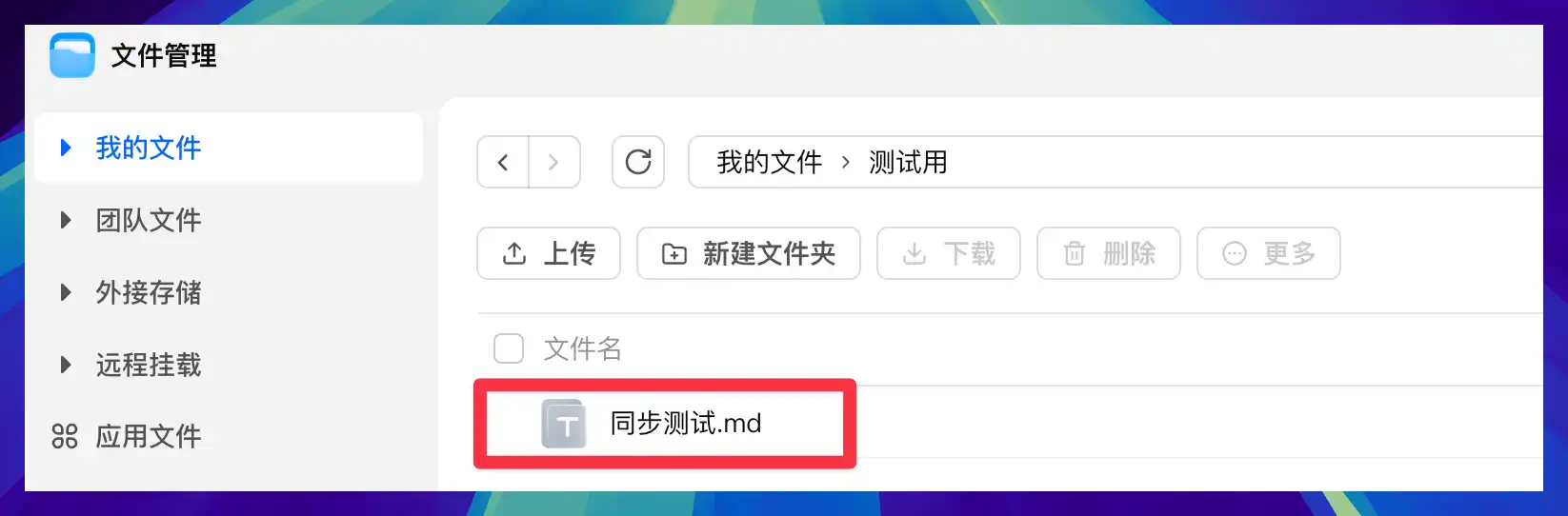
Here you can see:
同步测试.mdThat confirms the desktop Obsidian vault has been synced to Feiniu NAS.
Configure Obsidian on mobile
The mobile setup follows the same logic as desktop: install Remotely Save, choose WebDAV, and enter the same Feiniu WebDAV information.
If you do not know how to install Remotely Save on mobile, see the mobile section in the plugin installation tutorial first. The plugin installation entry is different, but the later settings are the same.
On mobile Obsidian, go to Settings and find Remotely Save under “Community plugins”.
For the remote service, choose:
WebdavUse the same server address, username, and password as desktop.
Server address: https://dav.xxxx.fnos.net:443
Username: your Feiniu login username
Password: your Feiniu login password
Authentication type: basic
Remote base directory: 测试用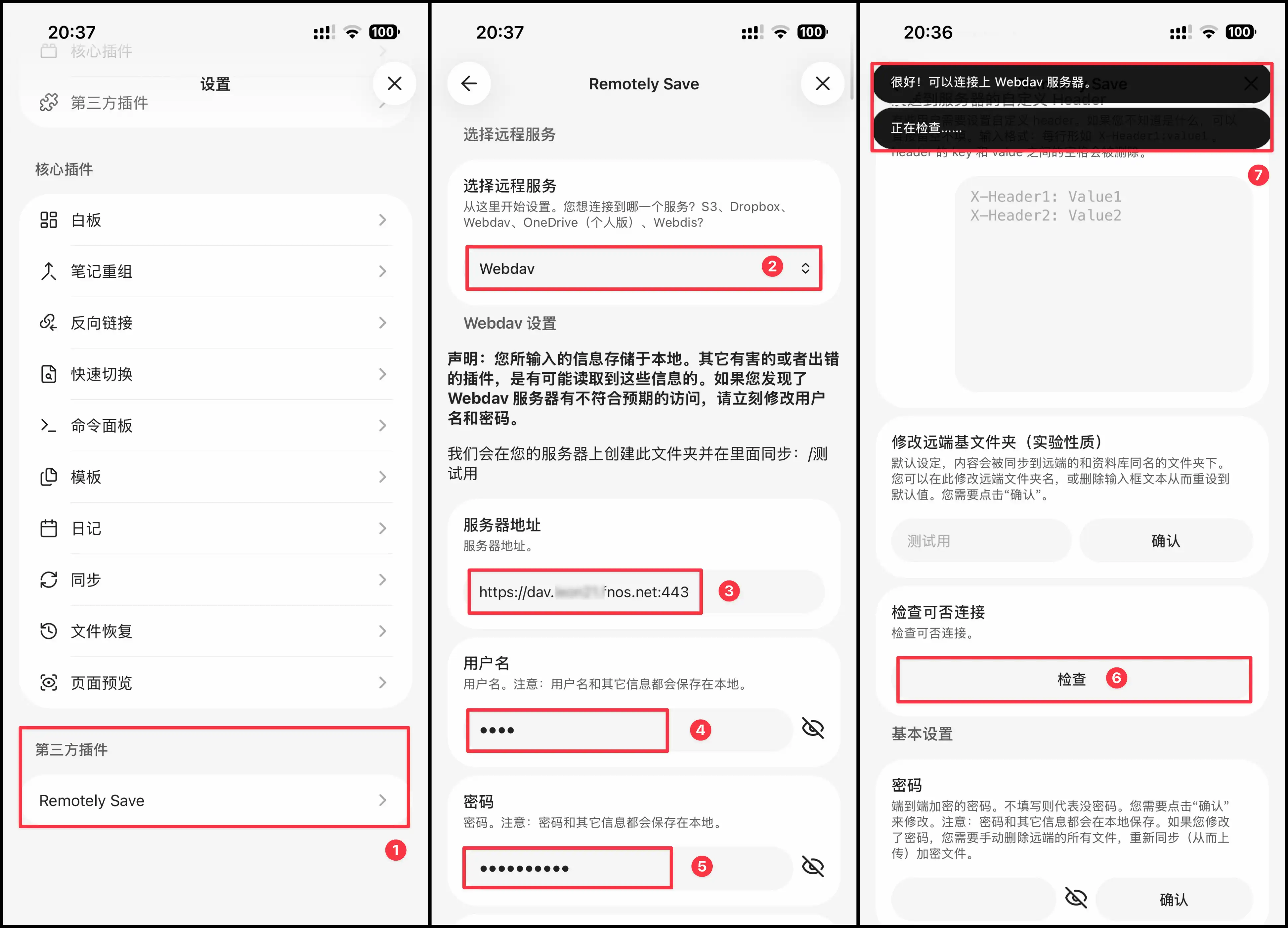
You can also tap “Check” on mobile.
After seeing “很好!可以连接上 Webdav 服务器。”, the mobile side has also connected to Feiniu WebDAV.
Then manually run Remotely Save once. After sync finishes, the note uploaded from desktop to Feiniu NAS should appear on mobile.
How to troubleshoot 401 errors
The most common error in this setup is:
Error: Invalid response: 401 UnauthorizedWhen you see 401, do not rush to reinstall the plugin. It usually means the server rejected this request. Check in this order.
First, check the username.
Use the Feiniu login username. Do not use the name inside the FN Connect domain. For example, if the server address is:
https://dav.xxxx.fnos.net:443xxxx is only part of the domain. It is not necessarily your login username.
Second, check the password.
Use your Feiniu account password. Do not enter an Obsidian password or the FN Connect domain name.
Third, check the authentication type.
Set it to:
basicFourth, check the remote base directory.
If you set the remote base directory to 测试用, the same folder must already exist in Feiniu File Manager. The folder name must match exactly, including Chinese characters, spaces, and capitalization.
Fifth, confirm that FN Connect access to WebDAV is actually enabled.
On the Feiniu side, both conditions must be true:
- WebDAV service is enabled under “File Sharing Protocol”
- “Allow WebDAV service access through FN Connect” is enabled under “Remote Access”
If WebDAV is enabled but FN Connect access to WebDAV is not, the external address may still fail.
In addition, if the WebDAV root can sync but subfolders are empty, or if sync reaches a certain step and then returns 401, it may be related to FN Connect’s WebDAV forwarding compatibility.
So start with a small test vault. Only move your main vault after desktop and mobile can upload, download, and delete test notes normally.
When this Feiniu WebDAV setup makes sense
If you already have a Feiniu NAS and want to keep your Obsidian data on your own device, this setup is a good fit.
Compared with Tencent Cloud COS, it involves fewer cloud-specific steps. You do not need to create a bucket or generate API keys. After enabling WebDAV and FN Connect on the NAS side, Remotely Save only needs a server address, username, and password.
But it also has a few requirements:
- Feiniu NAS needs to stay online
- FN Connect needs to remain reachable
- Remotely Save and Feiniu WebDAV compatibility should be tested in your own vault
If long-term stability matters more, you can compare this article with the Tencent Cloud COS guide. Tencent Cloud COS is closer to a pure cloud relay. Feiniu WebDAV is better for users who already have a NAS and want their data to stay on their own device.
The Feiniu NAS + FN Connect + Remotely Save sync flow is complete.
More Posts

Obsidian 2026 剪藏插件 Web Clipper 最新安装教程
从 Chrome 商店或压缩包安装 Obsidian Web Clipper,设置保管库和剪藏模板,保存第一篇文章。


我如何改造 Obsidian|模板开发日志(三)

Obsidian Fast Note Sync tutorial: deploy the server on Feiniu NAS with Docker
This guide deploys the Fast Note Sync server with Docker on Feiniu NAS, then connects Mac, iPhone, and other devices to the same Obsidian vault sync setup.