Obsidian 2026 Plugin Installation Guide: Marketplace, BRAT, and Mobile
This guide explains the main sources of Obsidian plugins, how to install community plugins on desktop and mobile, and how to use BRAT for GitHub plugins.
Many Obsidian tutorials tell you to install a plugin, but plugins do not all come from the same place.
Plugins such as Templater, Dataview, Calendar, and Excalidraw can be searched and installed from Obsidian's community plugin marketplace. Other plugins have not entered the official marketplace yet, and their authors only publish them on GitHub. These usually need to be installed with BRAT.
This guide covers the desktop flow, the BRAT flow, and the mobile flow.
Desktop Installation
The Mac and Windows versions of Obsidian use almost the same entry points. Some interface details may differ slightly.
Method 1: Install A Plugin From The Official Marketplace
- Open Obsidian Settings and go to Third-party plugins. The first time you use third-party plugins, you need to turn off Safe mode before installing community plugins.
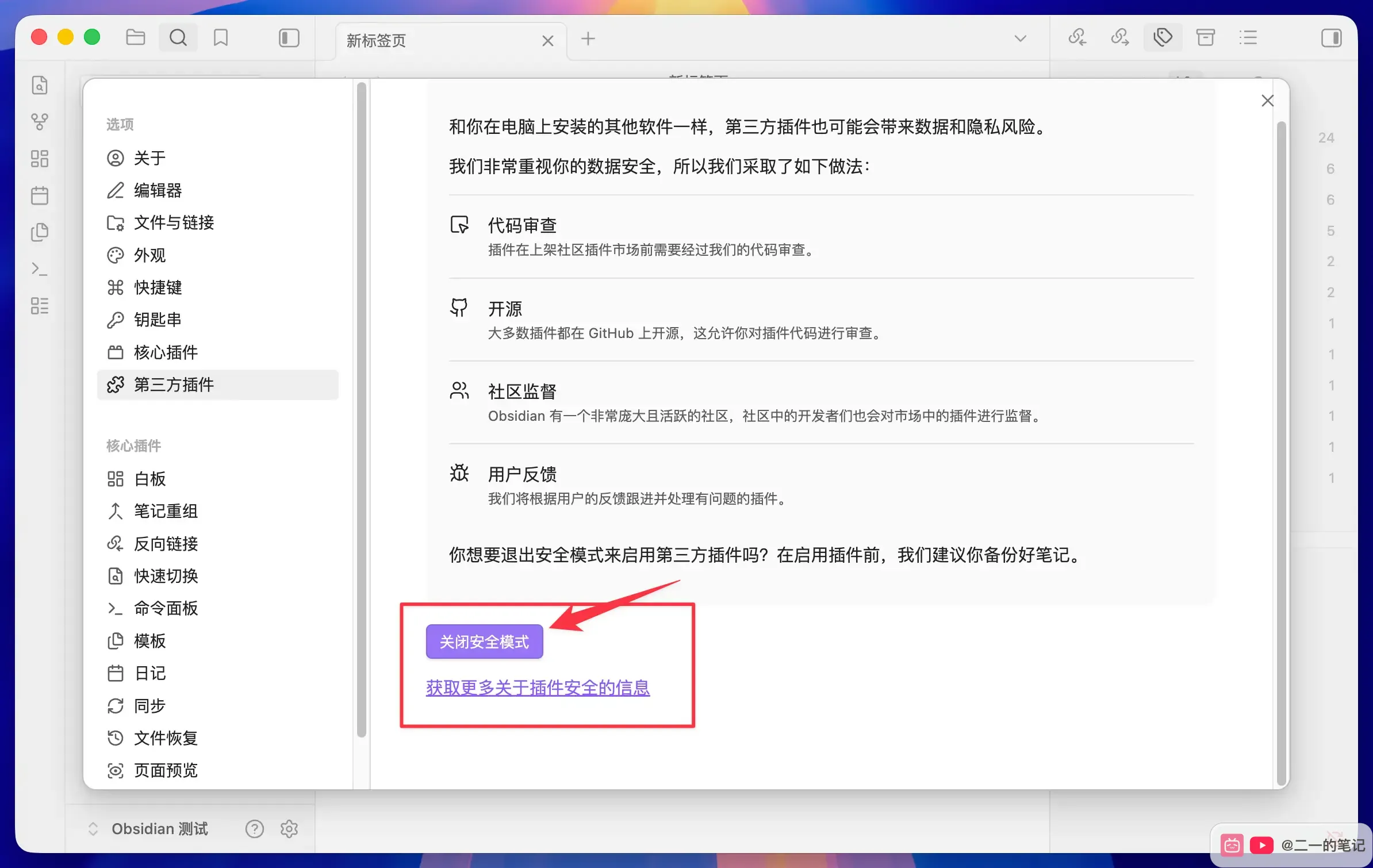
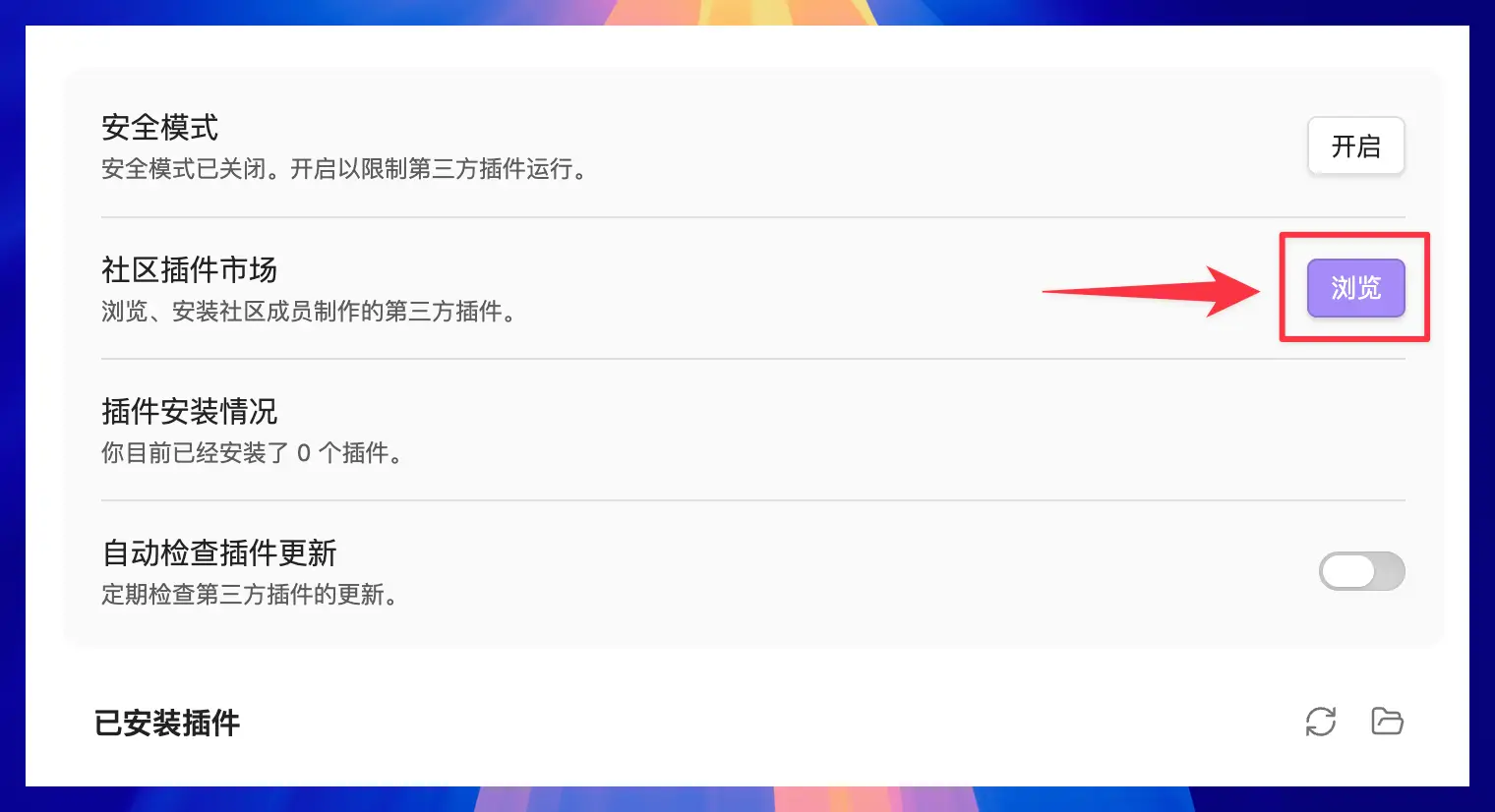
- After turning off Safe mode, return to the Third-party plugins page, find Community plugins, and click Browse on the right.
- In the community plugin marketplace, enter the plugin name in the search box at the top.
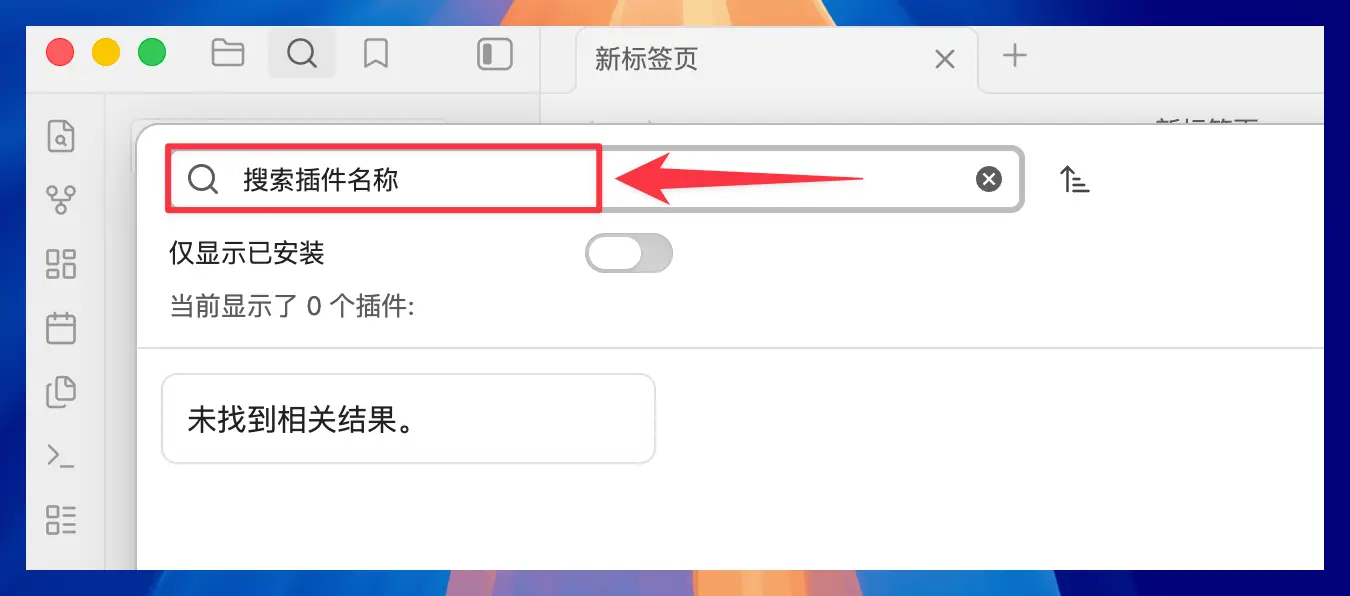
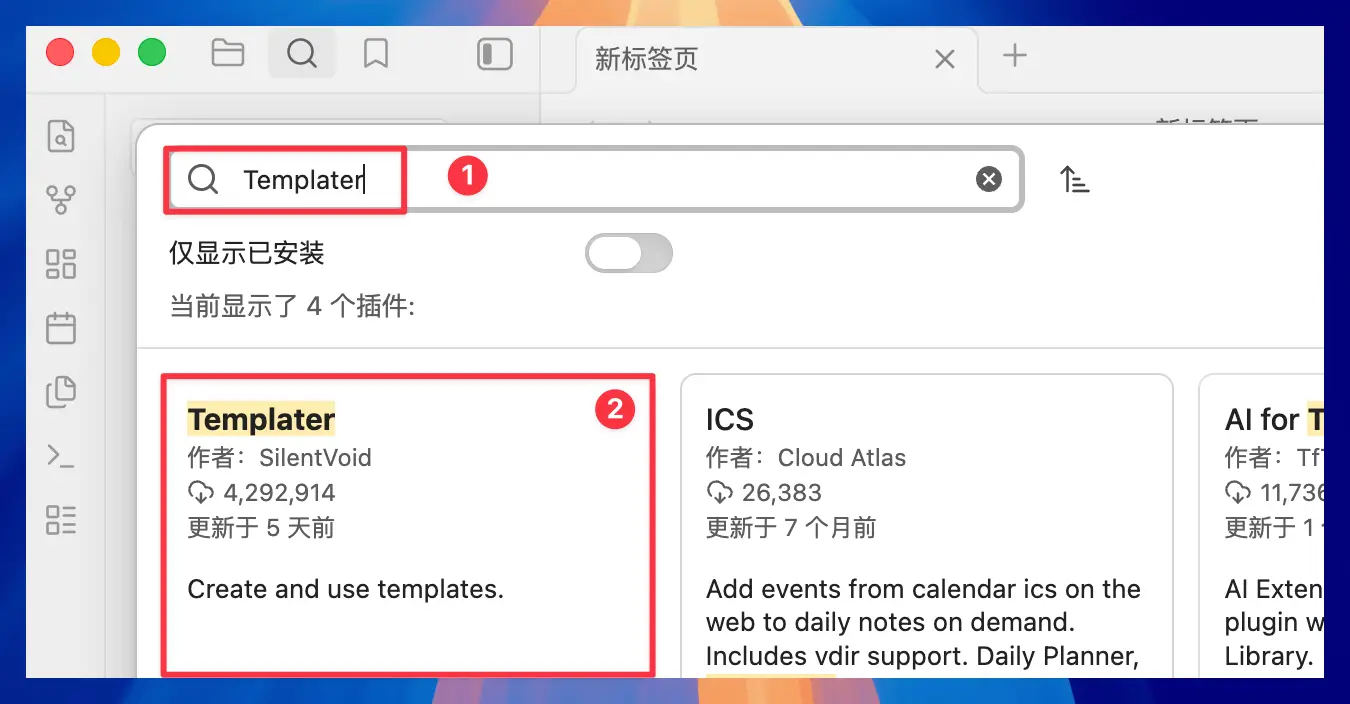
- Using Templater as an example, enter "Templater" in the search box, then click the matching plugin card in the results.
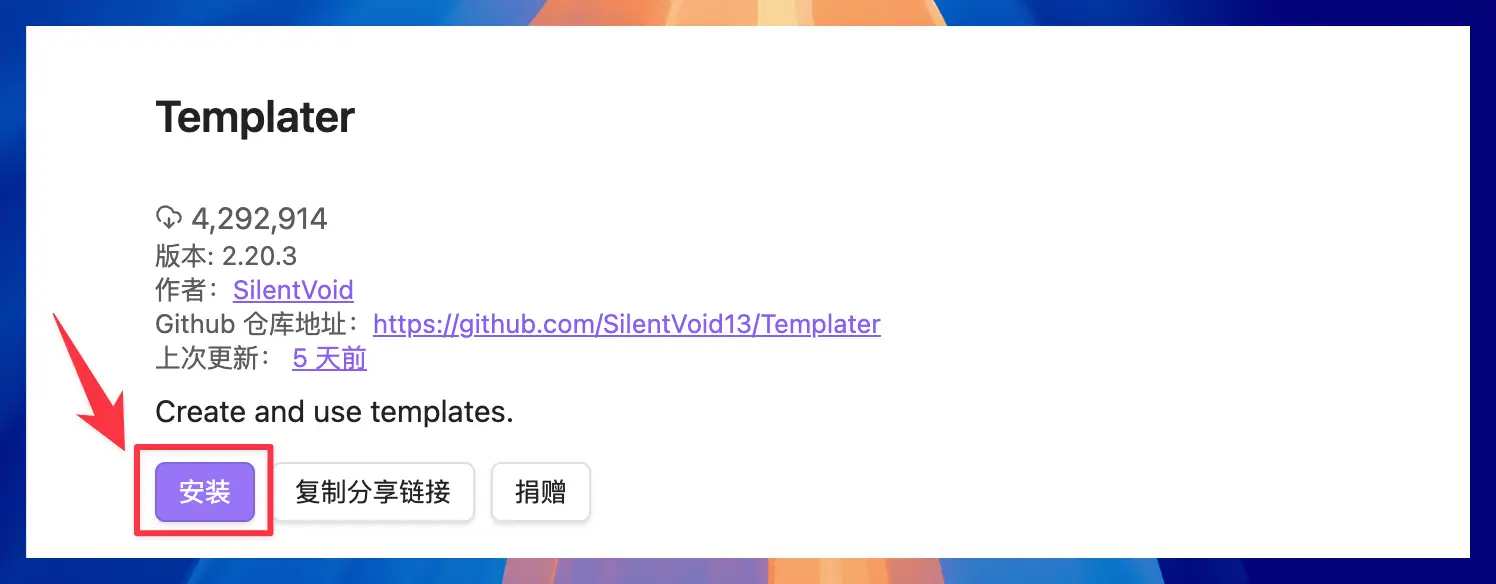
- On the plugin details page, check the plugin name, author, and GitHub repository address. If everything looks right, click Install.
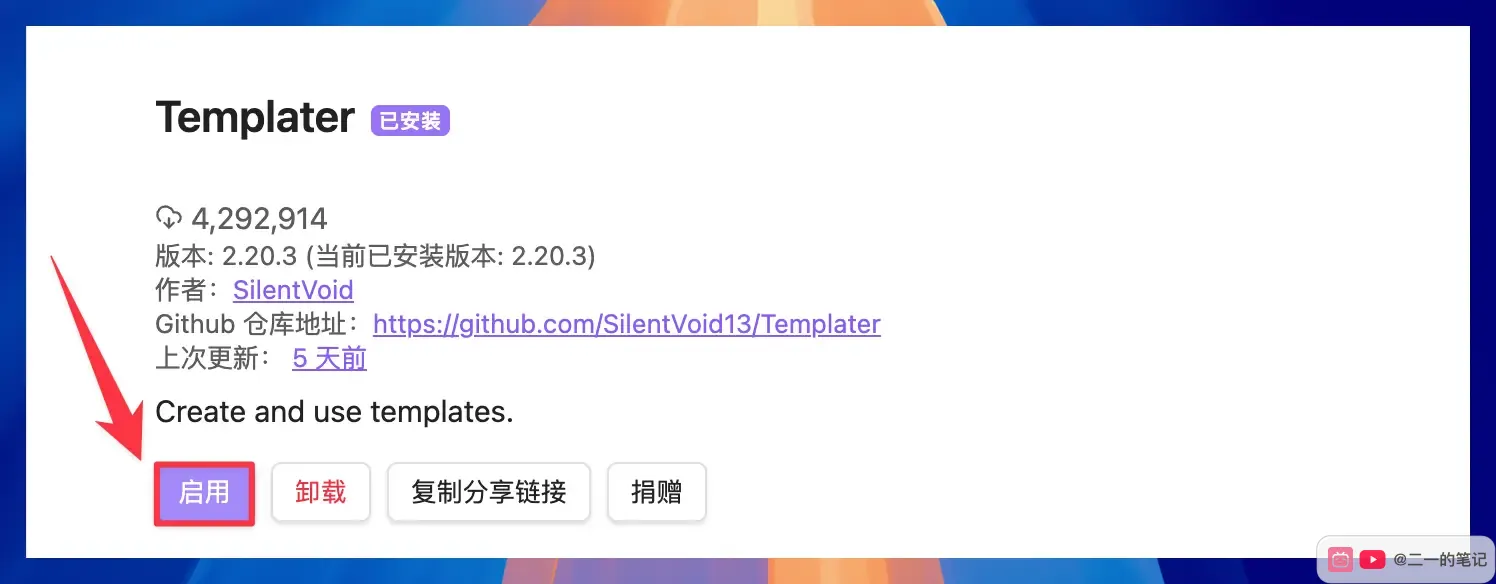
- After installation, the button changes to Enable. Click Enable, and the plugin will start working.
Method 2: Use BRAT To Install A GitHub Plugin
If a plugin is not in the official marketplace and the tutorial gives you a GitHub repository address, you can install it with BRAT.
BRAT is also an Obsidian plugin. Install BRAT from the community plugin marketplace first, then use it to install other GitHub plugins.
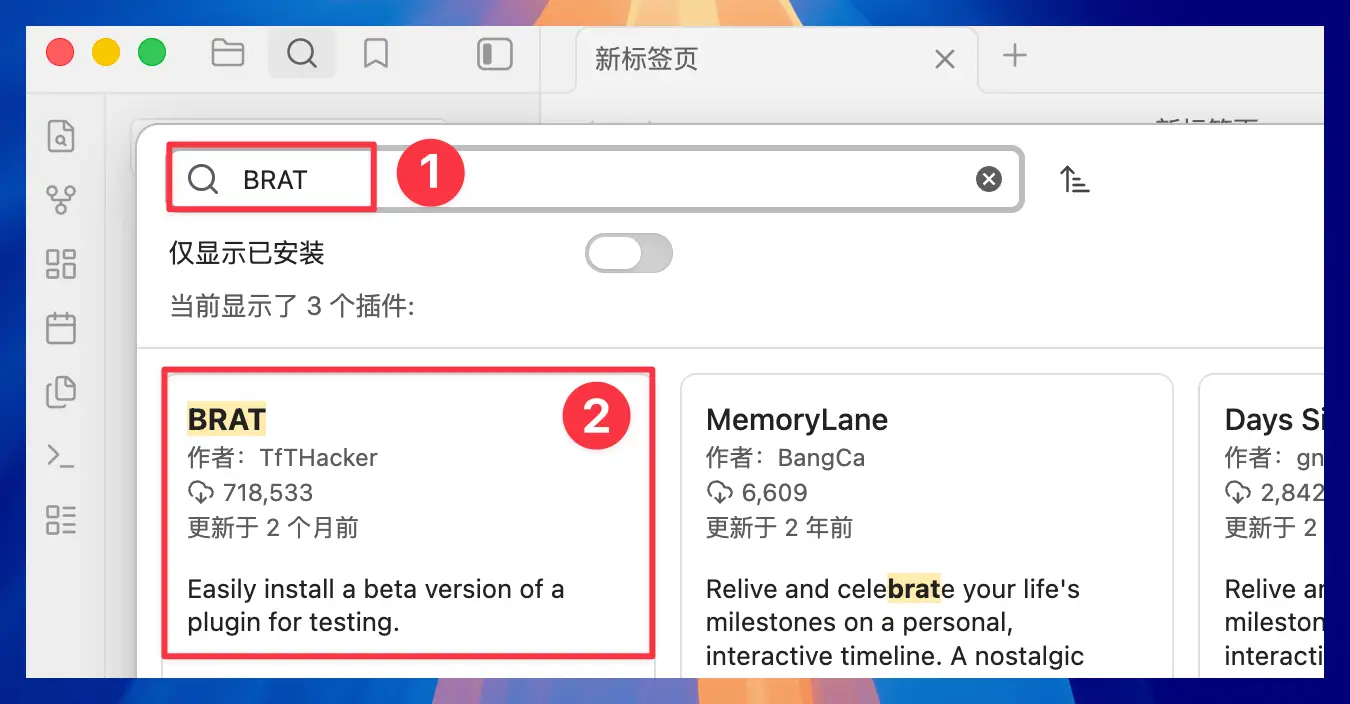
- Search for "BRAT" in the community plugin marketplace, then click the BRAT plugin card.
- On the BRAT plugin details page, click Install. BRAT helps install plugins from GitHub repositories, especially beta plugins.
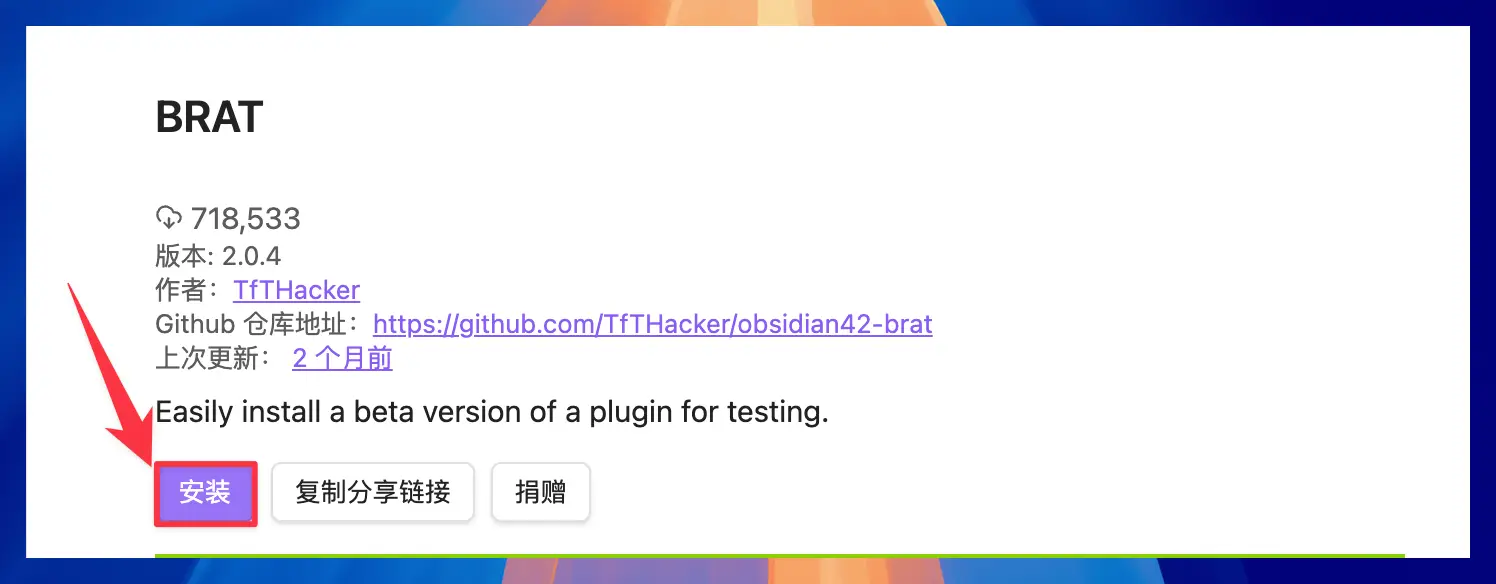
- After installation, click Enable so BRAT can start working.
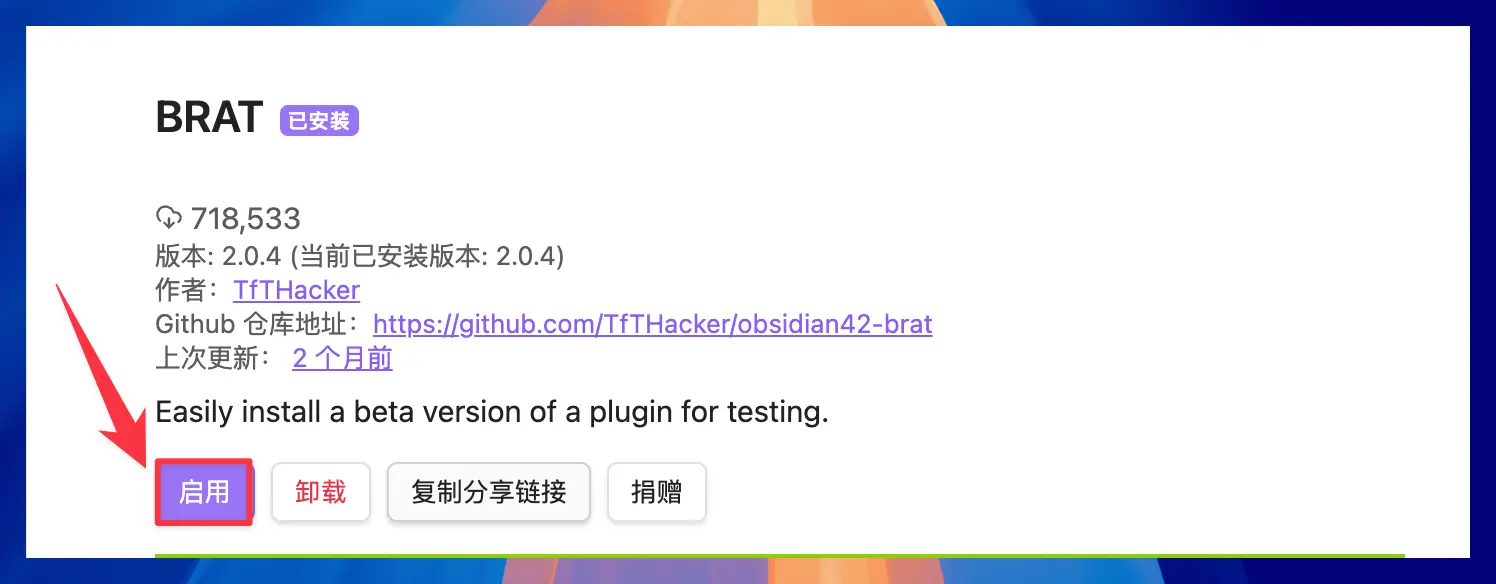
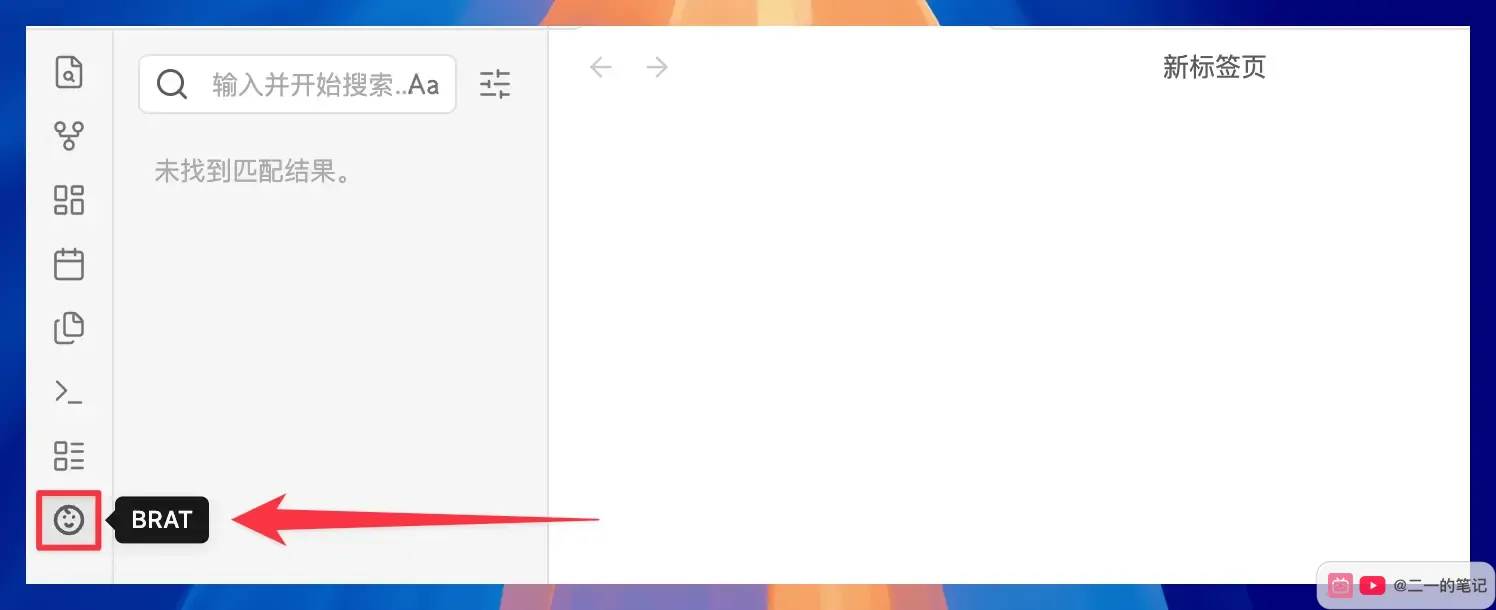
- After BRAT is enabled, its icon appears in the left sidebar. Click the icon to open BRAT.
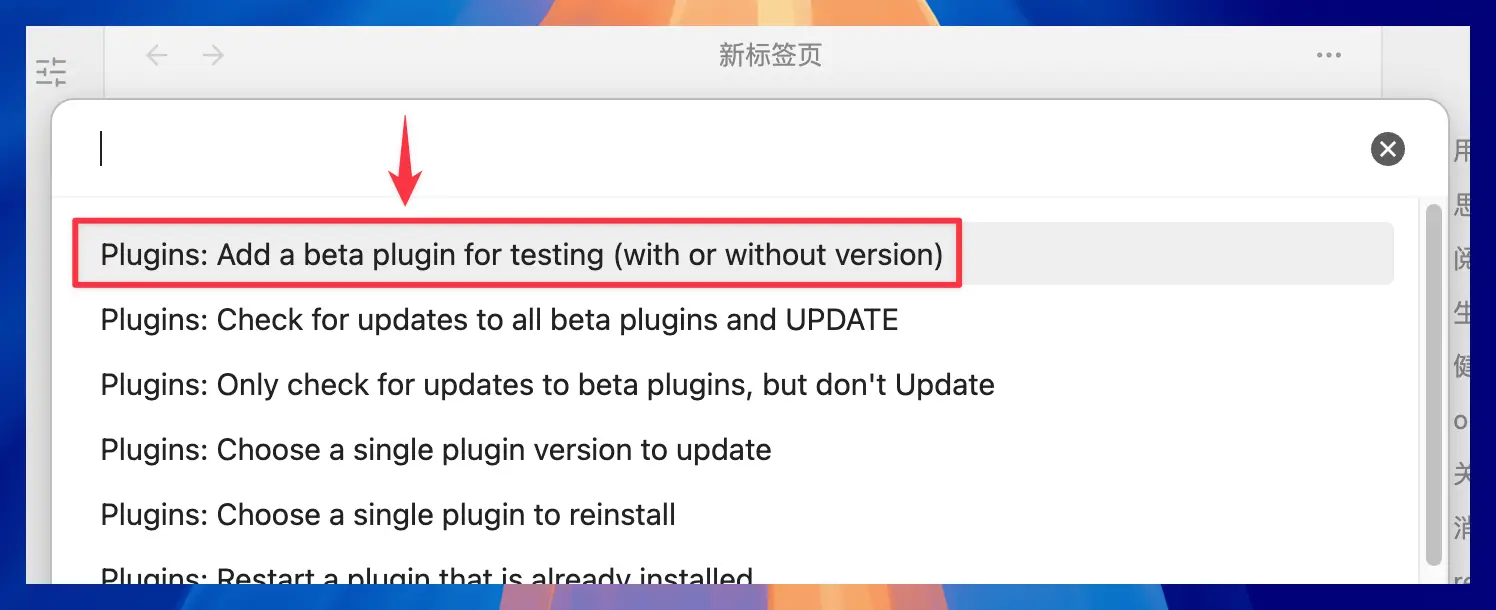
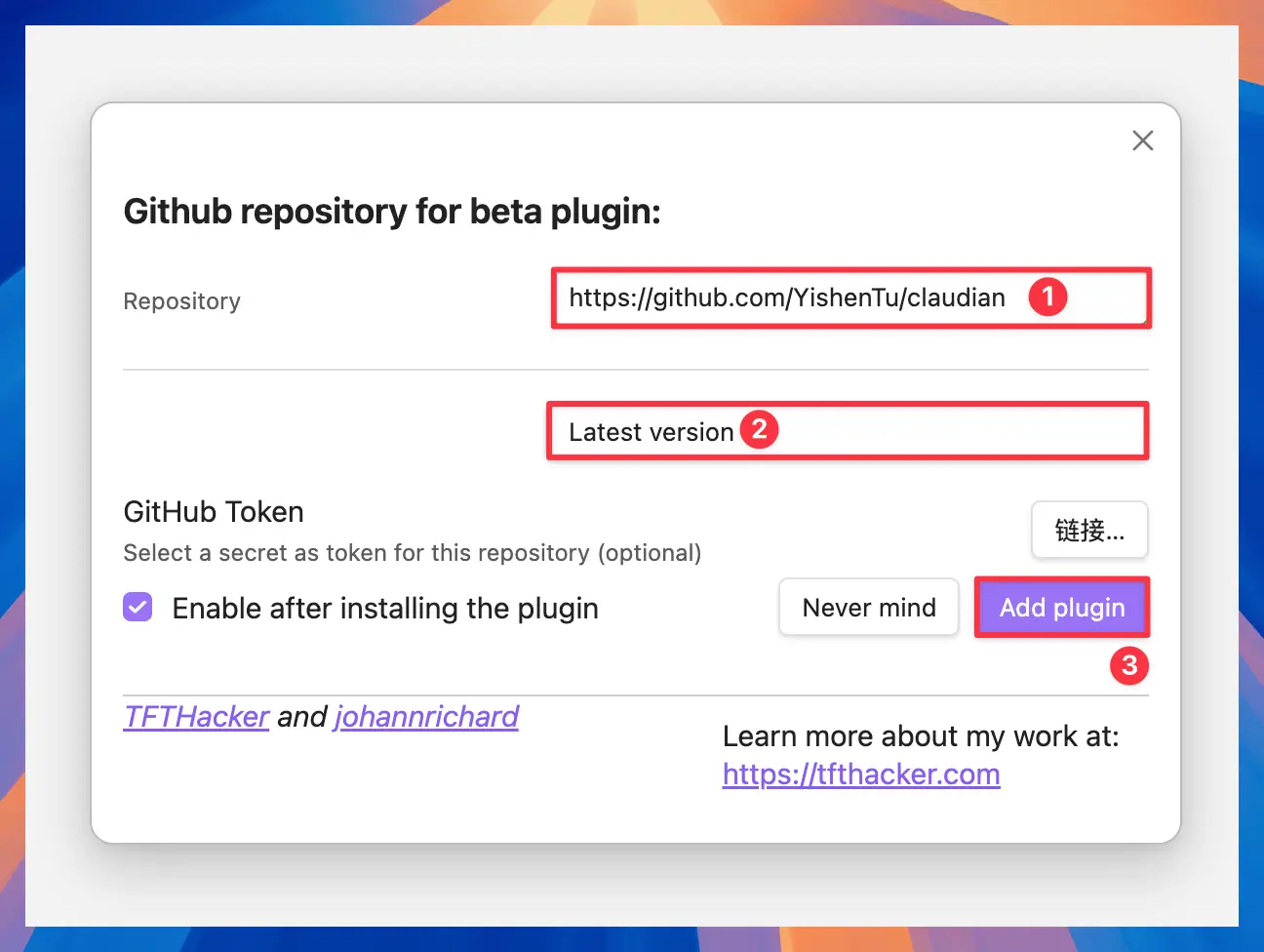
- In BRAT's command list, choose "Plugins: Add a beta plugin for testing". This command adds a plugin for testing.
- In the popup window, paste the plugin's GitHub repository address. In most cases, leave the version setting on "Latest version". Confirm that "Enable after installing the plugin" is checked, then click "Add plugin". BRAT will install and enable the GitHub plugin.
Mobile Installation
Obsidian mobile can also install plugins. The flow is similar to desktop: open Third-party plugins, turn off Safe mode, then search, install, and enable plugins from the community marketplace.
- On the Obsidian mobile home screen, tap the settings button in the lower-right corner to open Settings. Find Third-party plugins and open it.
After entering the Third-party plugins page, tap Turn off safe mode. Once it is off, mobile Obsidian can install community plugins.
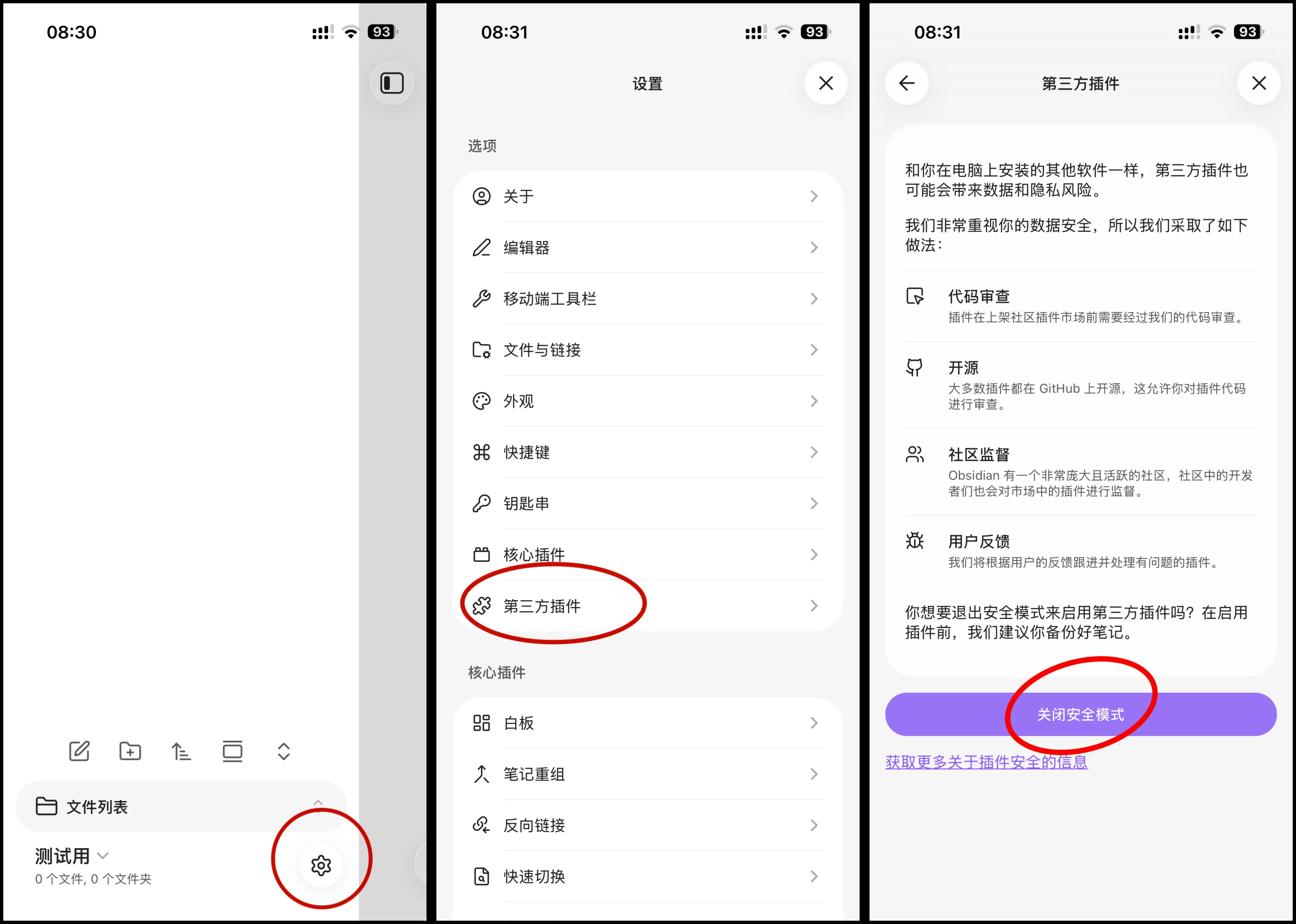
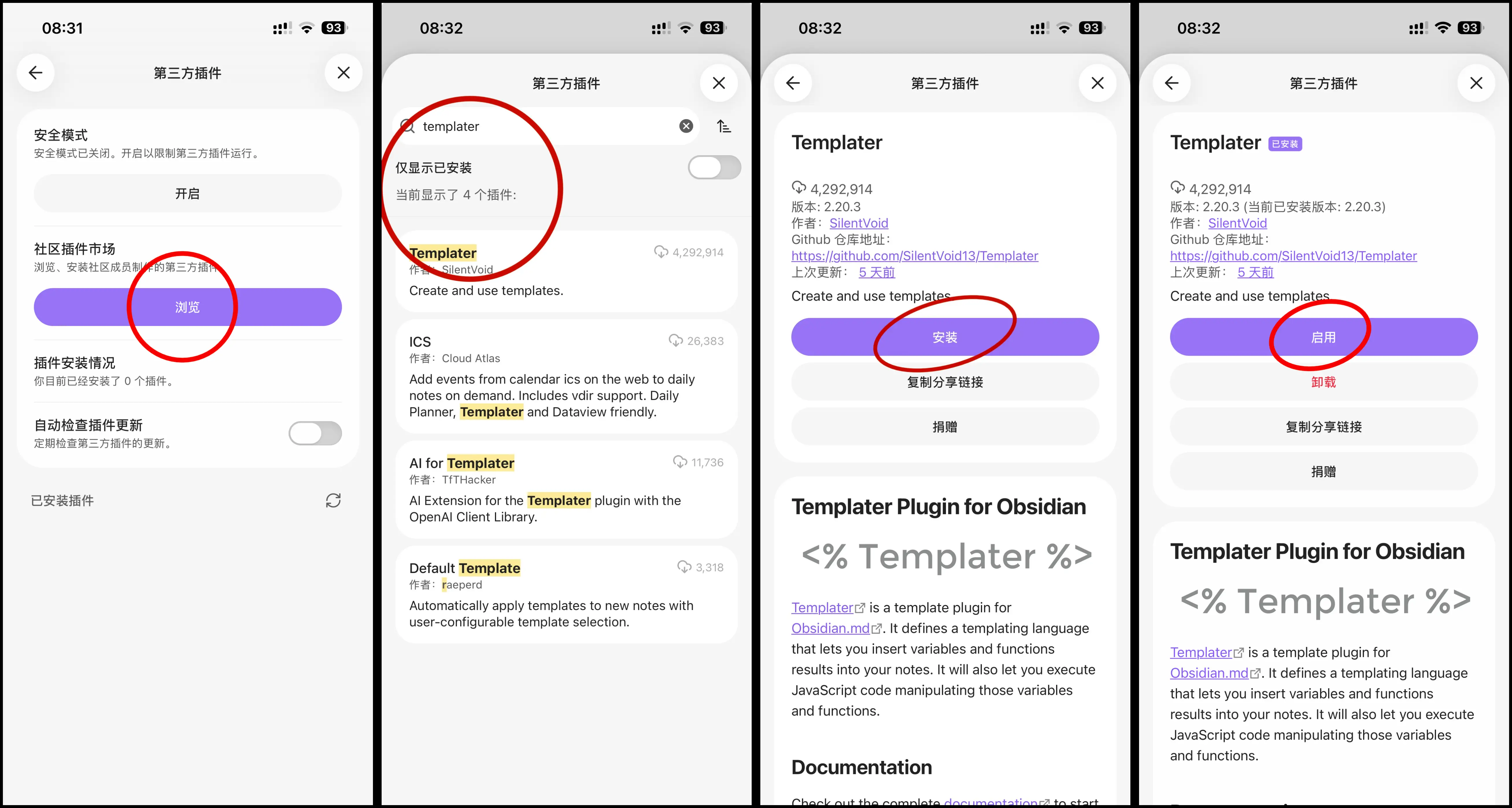
- After Safe mode is turned off, tap Browse under Community plugins to enter the plugin marketplace.
Enter a plugin name in the search box, such as "Templater". Open the matching plugin details page, tap Install, and then tap Enable after installation finishes.
After installing a plugin, check its enabled state once more:
- Go back to Third-party plugins in Settings
- Find Installed plugins
- Confirm that the switch on the right side of the plugin is turned on
- If the plugin has its own settings page, open it and continue setup
Installing without enabling is not enough. The plugin will not work, and many beginners get stuck here.
FAQ
Why Can't I Find The Plugin?
Common reasons include:
- The plugin name is spelled incorrectly
- The plugin has not entered the official marketplace
- The plugin has been removed or renamed
If the official marketplace cannot find it, but the tutorial provides a GitHub address, try installing it with BRAT.
Why Does The Plugin Do Nothing After Installation?
You still need to click Enable after installation. Installing without enabling does not make the plugin work. Some plugins also need separate configuration after being enabled, such as template folders, hotkeys, or command entries.
Are GitHub Plugins Safe?
GitHub plugins are still third-party plugins. Before installing one, check the author, update date, download count, documentation, and repository activity. Avoid plugins with unclear sources, no documentation, or no updates for a long time.
Related Plugin Tutorials
After installing plugins, you can continue with these setup guides:
More Posts
Why Obsidian needs a clearer work template
This Obsidian template brings projects, tasks, notes, and reviews into a local Markdown workflow.

Obsidian 模板开发日志(一):下定决心
这篇开发日志记录我为什么开始认真开发 FLO.W Obsidian 模板,以及我对 Notion、AI 时代笔记价值和 Obsidian 模板设计的重新思考。
Obsidian LiveSync self-hosted sync tutorial: run CouchDB on a NAS with Docker
Obsidian LiveSync self-hosting guide: deploy CouchDB with Docker on a Feiniu NAS; also works on Synology, QNAP, UGREEN and other Docker-capable NAS devices.