Obsidian Official Sync Tutorial: Buying Obsidian Sync, Setting It Up, and Syncing Across Devices
Obsidian official Sync guide: buy Obsidian Sync, create a remote vault, set up selective sync, and avoid conflicts across Mac, Windows, iPhone and Android.
Overview
Obsidian's official sync service, Obsidian Sync, is the easiest sync option for most people.
You do not need to configure Git, WebDAV, Syncthing, iCloud, or Nutstore. Sign in with the same Obsidian account, create a remote vault, connect your other devices, and your notes sync across Mac, Windows, iPhone, Android, and Linux.
It is a good fit if:
- you are willing to pay for a stable and low-maintenance setup
- you do not want to spend time maintaining sync tools
- you use both desktop and mobile devices
- you want themes, hotkeys, and core plugin settings to sync as well
- you want version history so deleted or changed notes can be restored
If you cannot accept a subscription, or you already know Git, NAS, or WebDAV well, official sync may not be the most cost-effective choice. Its value is that it turns sync from a toolchain you maintain into a built-in Obsidian feature.
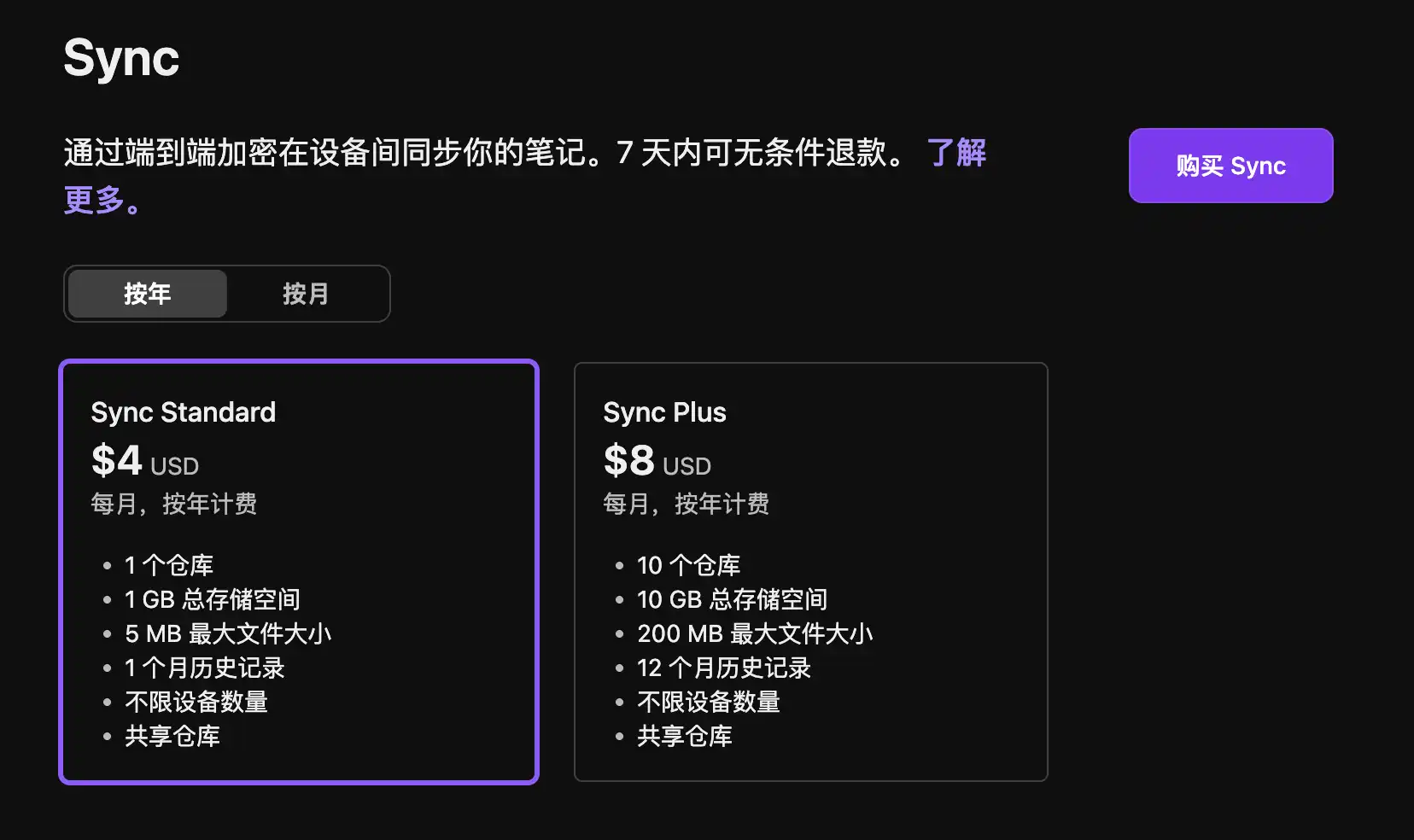
For pricing, Sync Standard is $4/month when billed yearly, or $5/month when billed monthly. Sync Plus is $8/month when billed yearly, or $10/month when billed monthly. Standard includes 1 synced vault, 1 GB of storage, a 5 MB maximum file size, and 1 month of version history. Plus includes 10 vaults, 10 GB starting storage, a 200 MB maximum file size, 12 months of version history, and optional expansion up to 100 GB.
Most text-first note users can start with Standard. If your vault is mostly Markdown, images, and a few PDFs, 1 GB is usually enough. Consider Plus when you need to sync multiple vaults, or when you often store videos, large PDFs, audio files, and many original images inside Obsidian.
One reminder: sync is not the same as backup. Obsidian Sync has version history and deleted file recovery, but it is still a sync service. If you delete something on one device, that deletion can sync to other devices. Important notes should still have an extra backup.
Setup
Register Or Sign In To An Obsidian Account
Open Obsidian Settings and find Sync in the left sidebar. If you do not have an Obsidian account, click Register. If you already have one, click Log in.
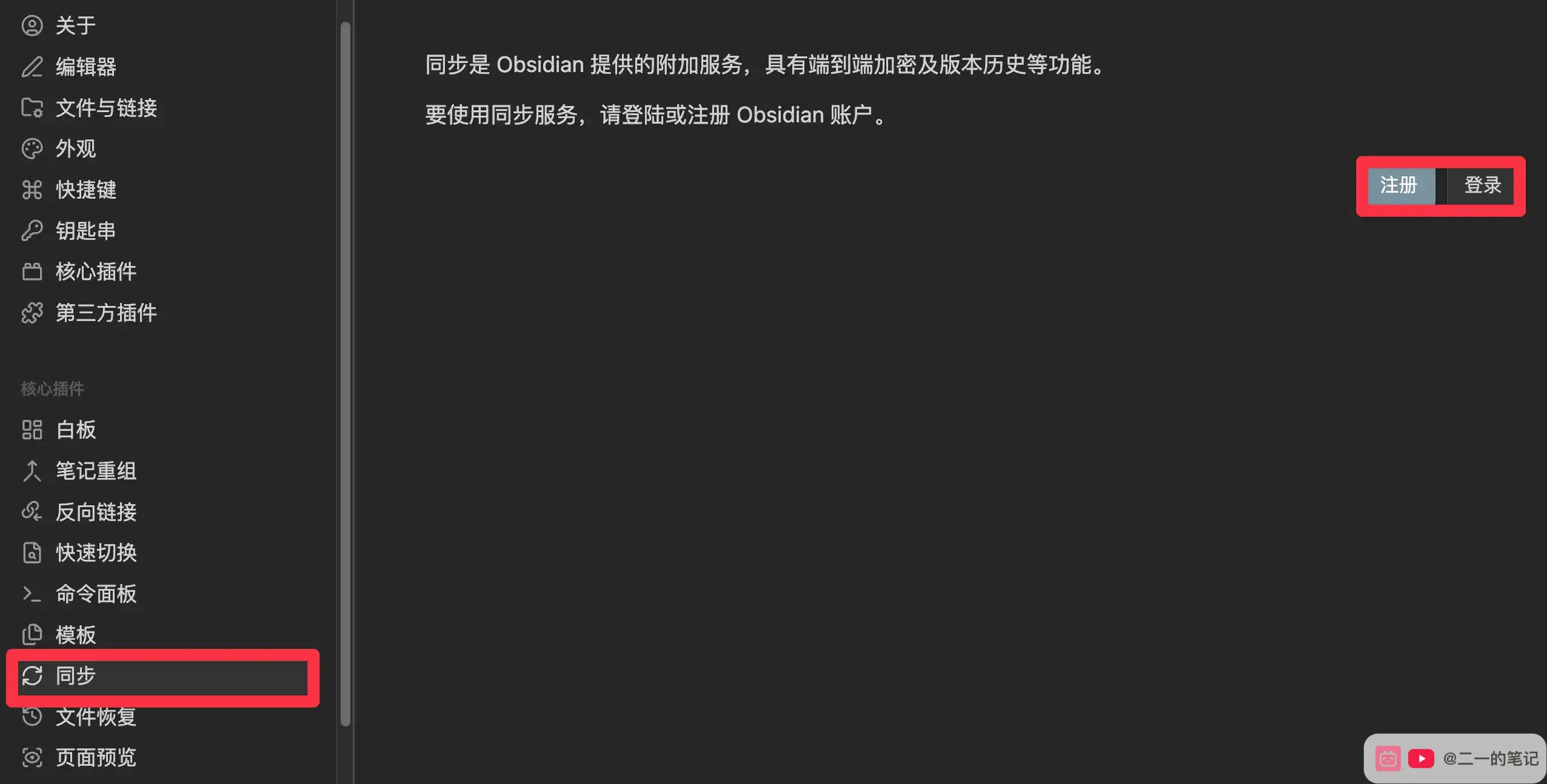
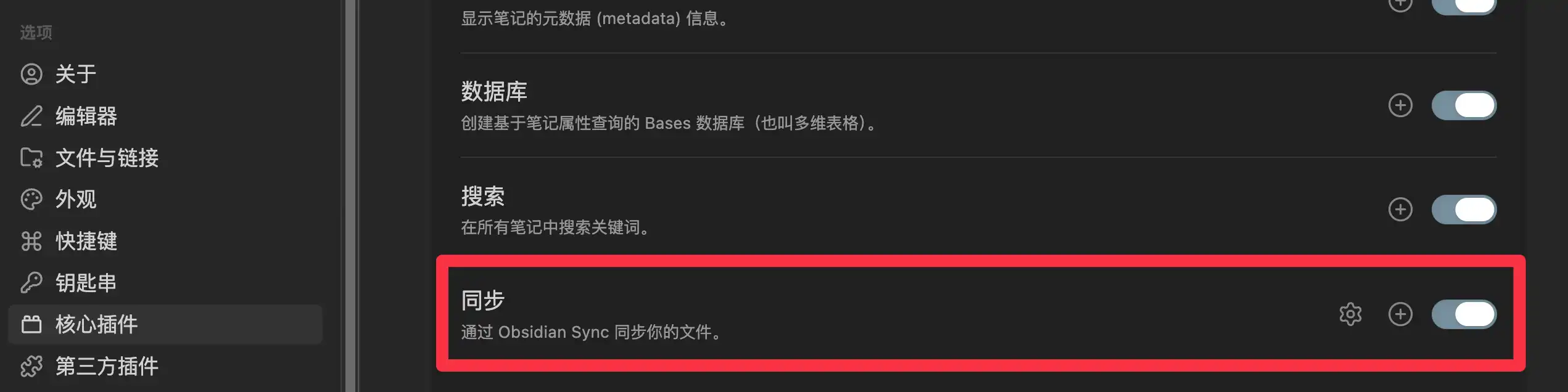
If Sync does not appear in the left sidebar, open Core plugins and enable Sync. Obsidian Sync is a core plugin, so you do not need to install it from the community plugin marketplace.
If your vault is already inside iCloud, OneDrive, Dropbox, or another third-party sync folder, Obsidian will warn you about possible conflicts.

Two sync tools changing the same folder can create duplicate files, older versions overwriting newer ones, or missing attachments. Once you decide to use Obsidian Sync, let Sync manage this vault by itself. Do not layer iCloud, Nutstore, OneDrive, or similar file sync tools on top of it.
Buy A Sync Plan
Purchase page: https://obsidian.md/account/sync
After signing in, open the Sync page and click Buy Sync.
Payment options include card, PayPal, WeChat Pay, and Alipay. For users in China, WeChat Pay or Alipay is usually easier.

Before buying, check the size of attachments and plugin files. Consider Standard when every file you need to sync is within 5 MB. It includes unlimited devices and shared vaults. The main limits are 1 vault, 1 GB of storage, a 5 MB file limit, and 1 month of history.
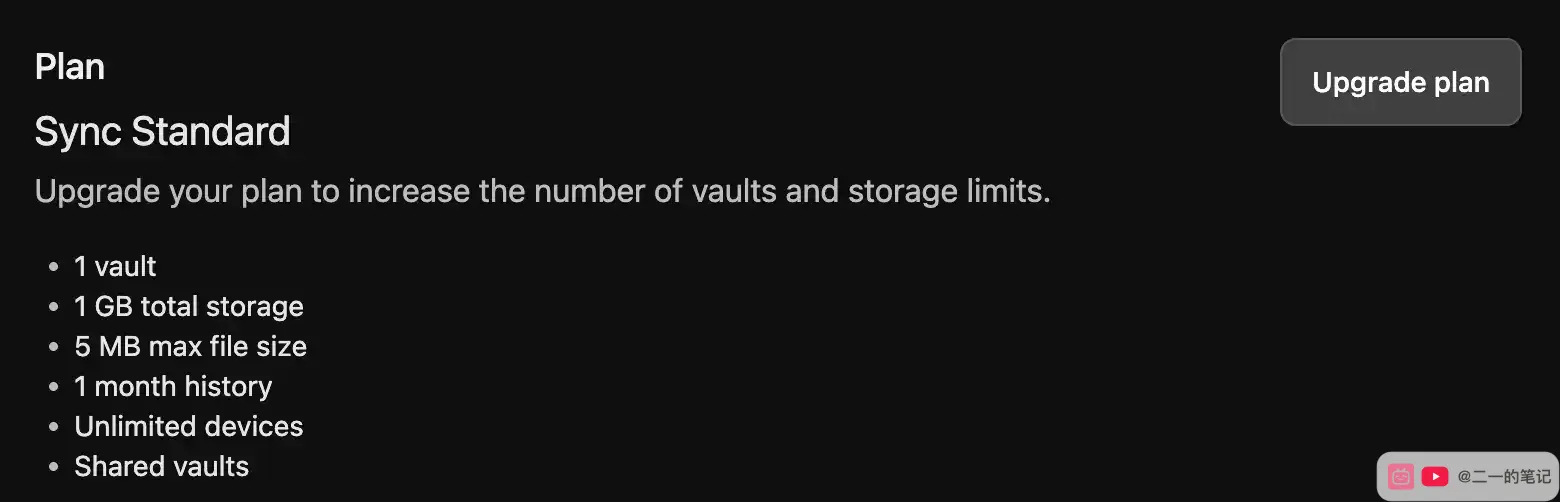
If you later run out of space or need to sync multiple vaults, upgrade to Plus. The main differences are 10 vaults, 10 GB starting storage, a 200 MB file limit, and 12 months of history.
Buying a plan only gives your Obsidian account Sync access. Your current vault will not start syncing until you go back to Obsidian and create a remote vault.
Configure Sync
Return to the Sync page in Obsidian and choose or create a remote vault.
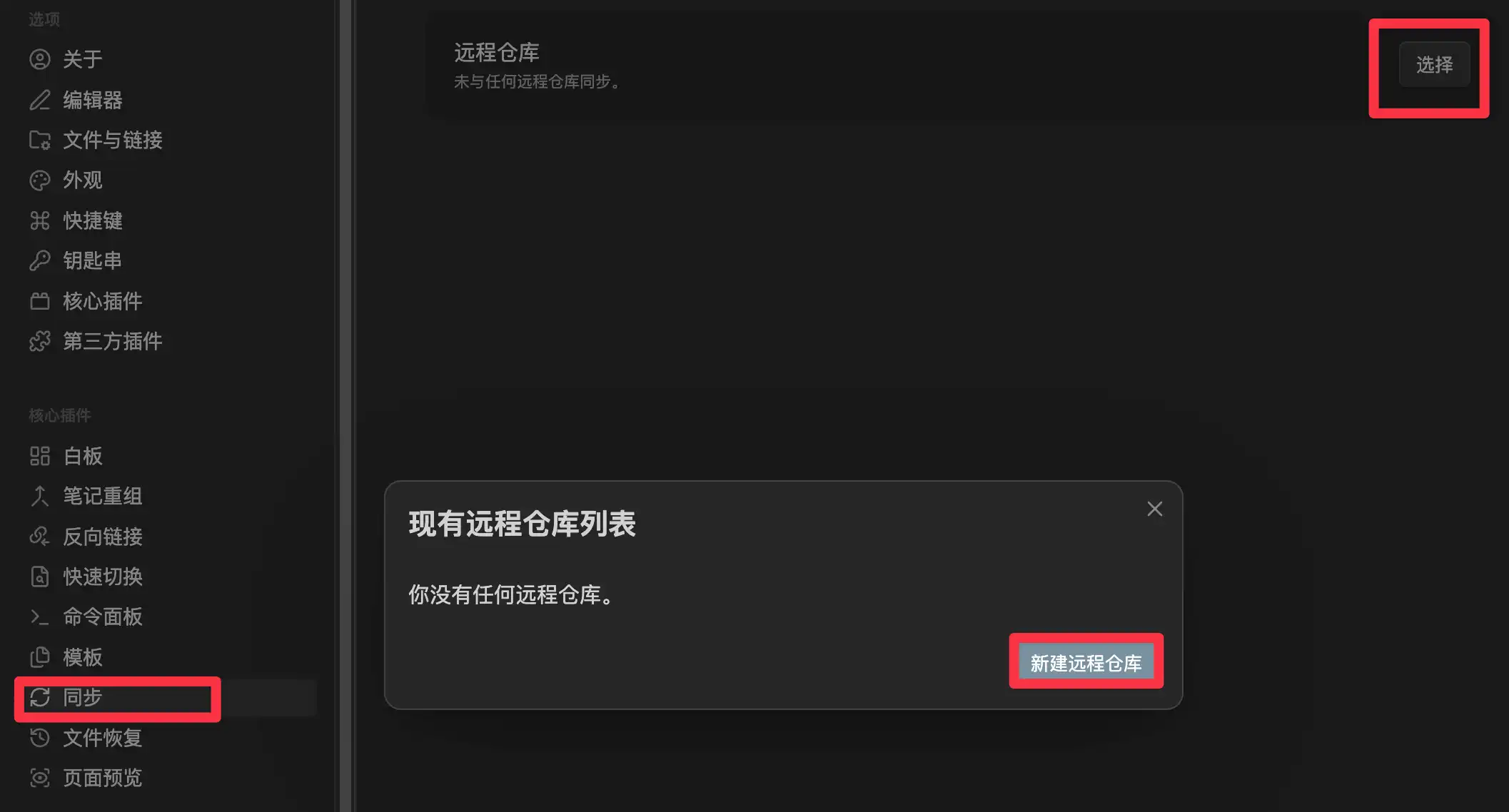
Remote vault here means the cloud location where Obsidian Sync stores this vault. It is not a GitHub repository or a local folder.
If the list is empty, click New remote vault.
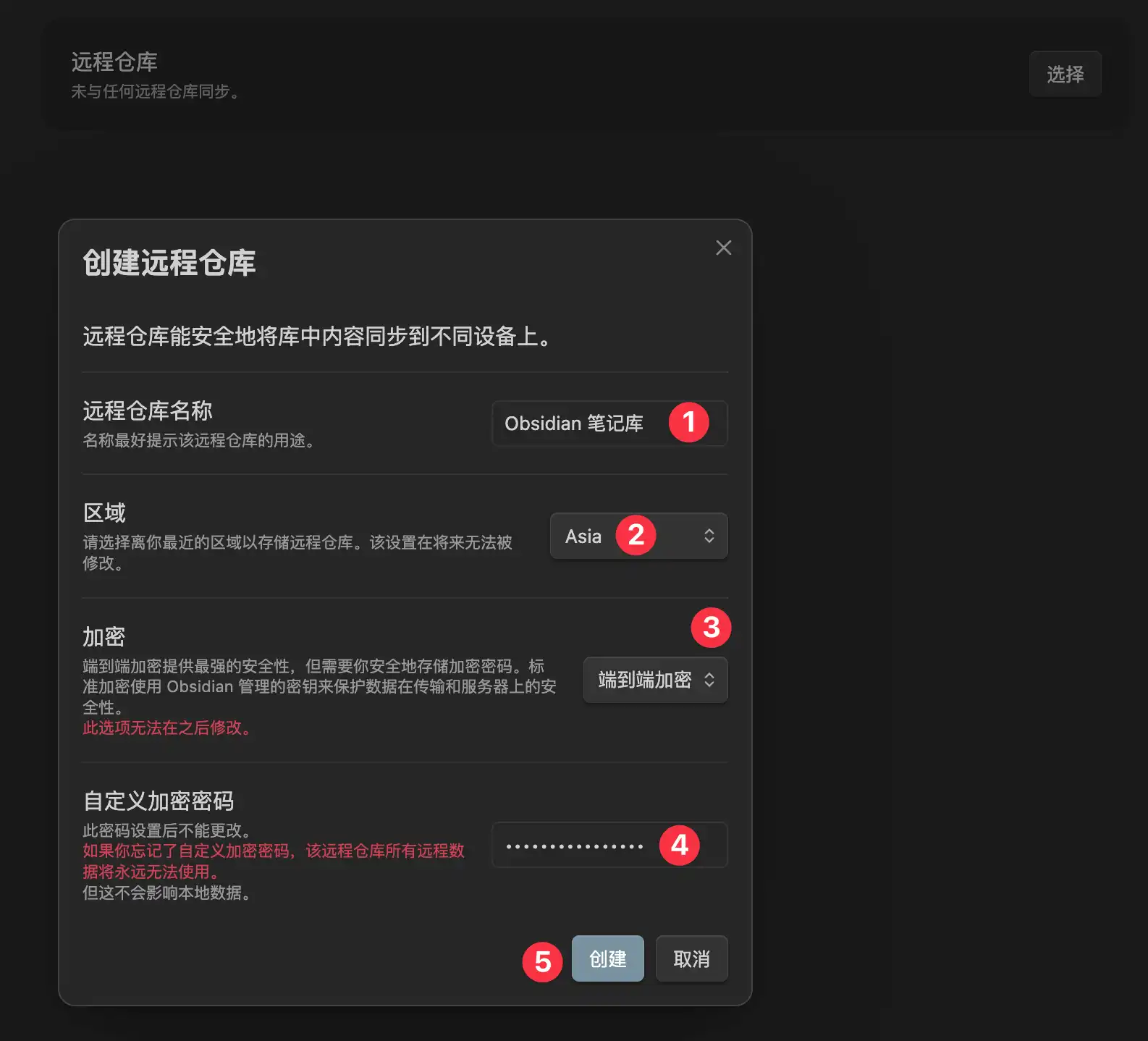
Pay attention to these fields:
- Remote vault name: use your vault name, such as Obsidian Notes
- Region: choose the nearest region. The screenshot uses Asia
- Encryption: keep End-to-end encryption enabled so notes are encrypted locally before upload
- Custom encryption password: save it carefully. It is separate from your Obsidian account password. If you forget it, remote data cannot be decrypted
- Create: check everything before confirming, because region and encryption mode cannot be changed later
Once connected, FLO.W Core users should not exclude any folders. Click “Start syncing” directly.
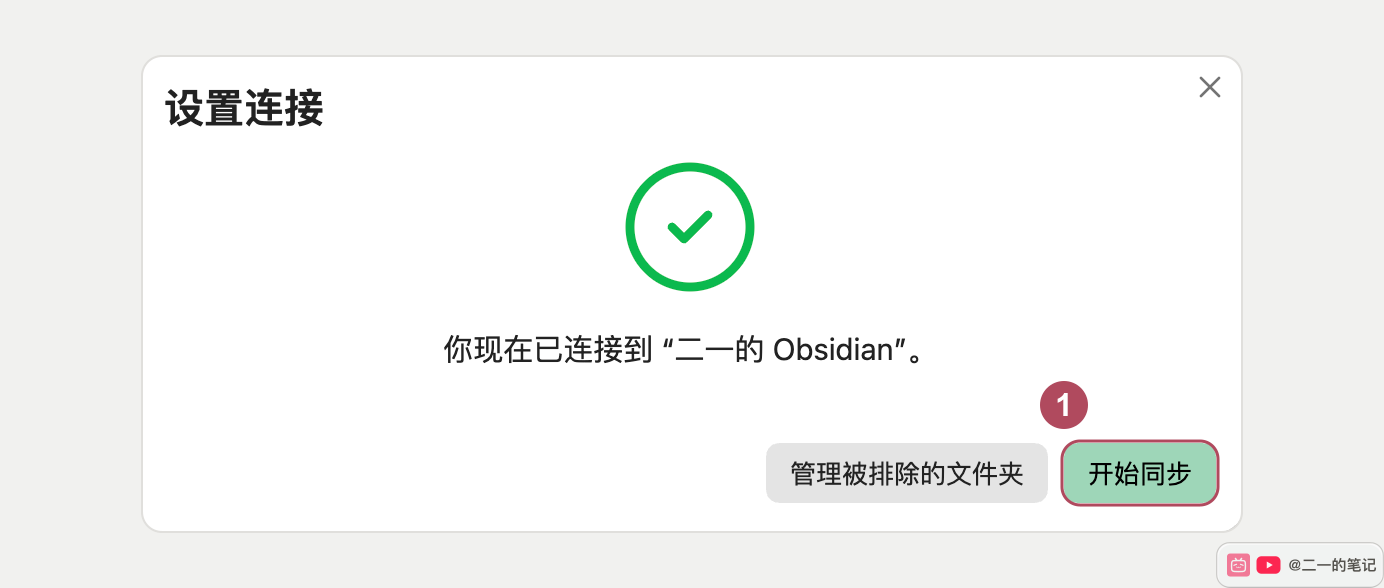
After creating the remote vault, wait for the green check in the bottom-right corner of the first device before connecting and syncing the second one. The first sync is often slow, especially when your vault contains many images, PDFs, themes, and plugin settings. Wait until it completes. Do not set up other platforms while the first device is still syncing, because mismatched local and remote states can create conflicts that are much harder to clean up later.
Configure Selective Sync
After connecting the remote vault, open Settings → Sync → Selective sync. Configure these options separately on your computer and phone.
Make sure “Sync all other types” is enabled so files beyond notes and common attachments are included.
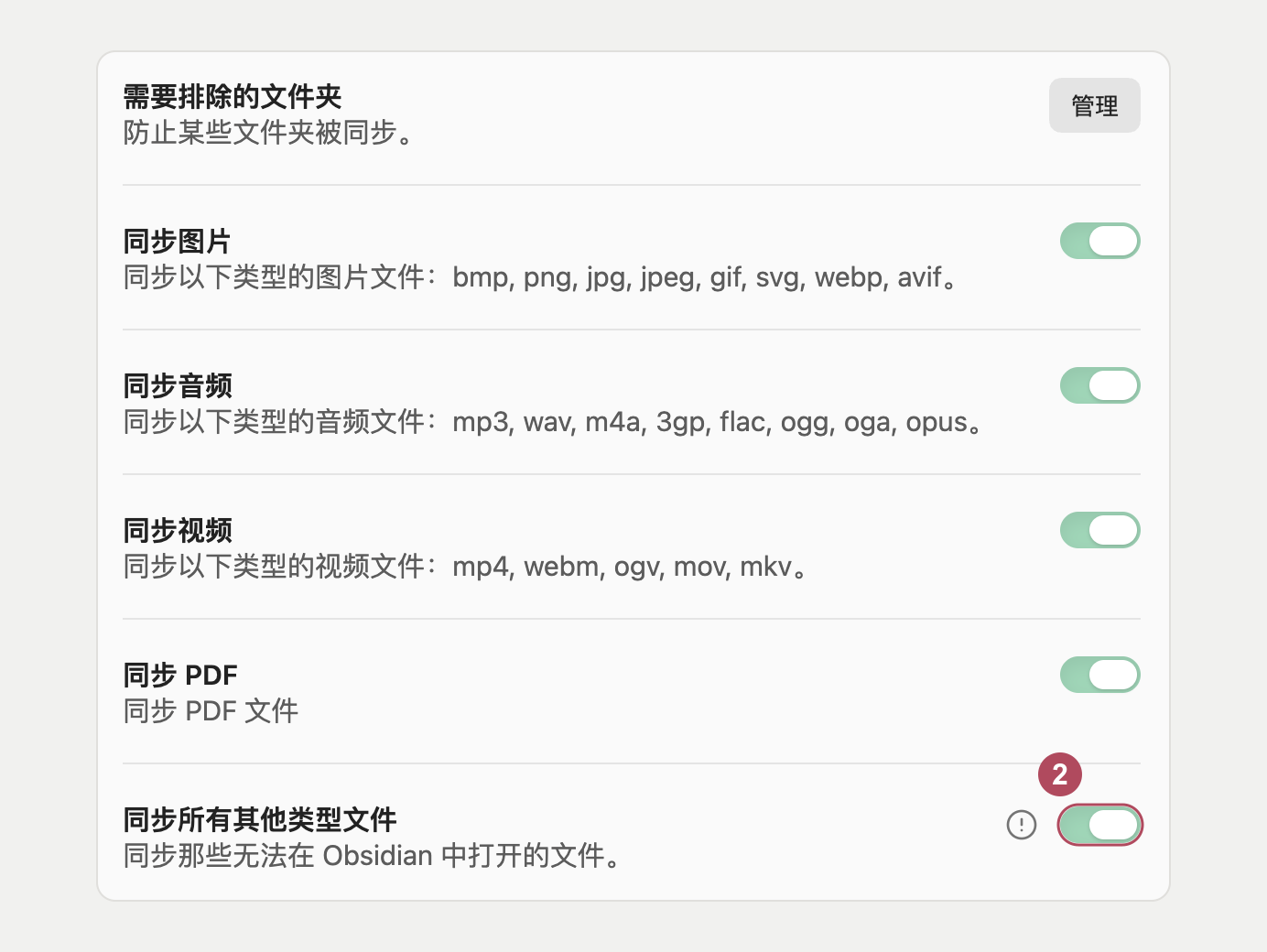
Enable images, audio, videos, and PDFs according to the contents of your vault. FLO.W Core users should leave the excluded folders list empty and should not exclude any folders.
Further down the same page, enable both “Active community plugin list” and “Installed community plugins” to sync plugin activation, plugin files, and settings.
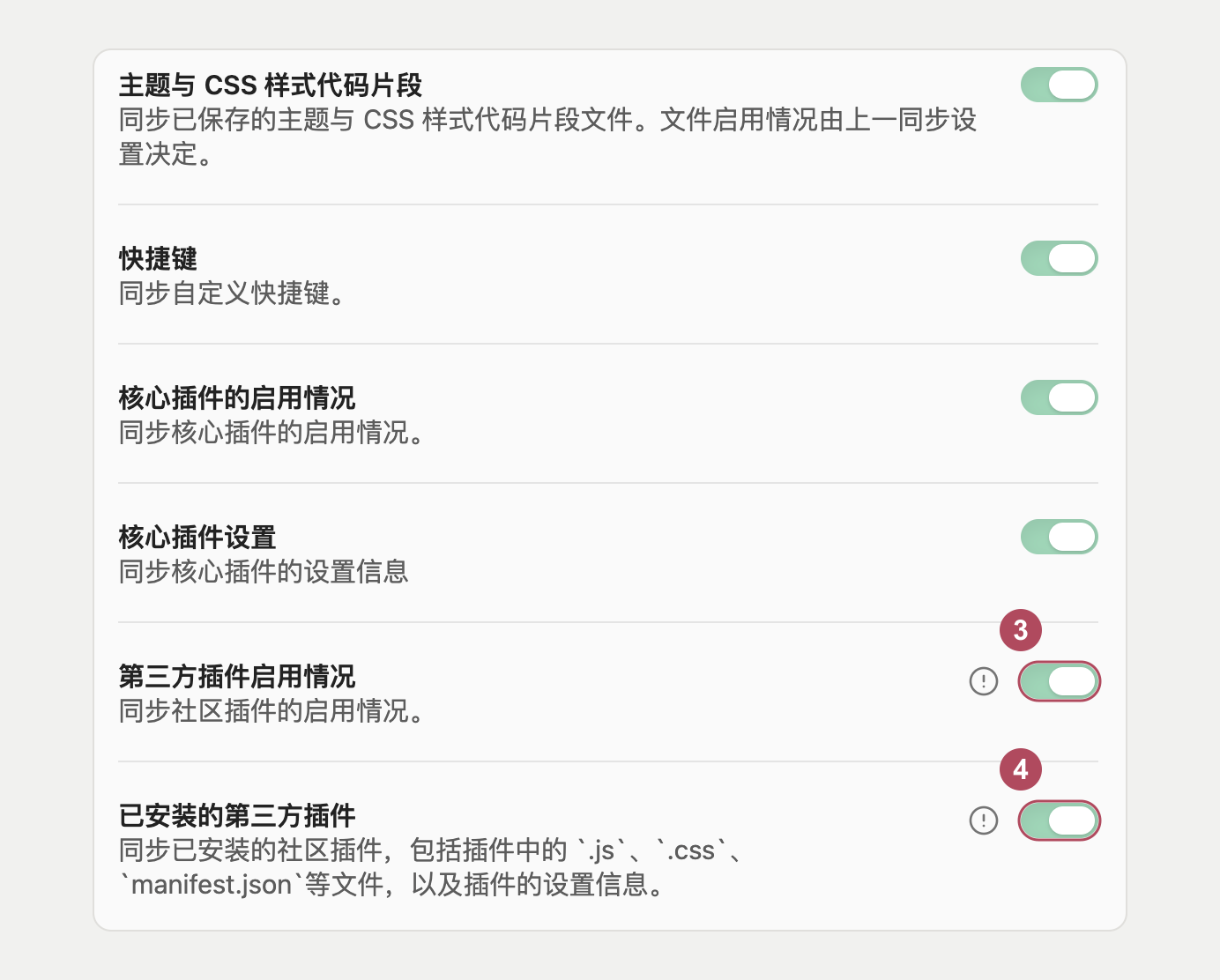
Standard has a 5 MB limit per file, including plugin files. Some plugins have a main.js larger than 5 MB. Even with plugin syncing enabled, that file may not reach the other device, leaving the plugin missing or unable to load. Check the sync log and the file size, then consider Plus, which allows files up to 200 MB, or install the plugin on the other device using its official instructions. Enabling “Sync all other types” does not bypass the size limit. Official plan limits
Sync On Other Devices
Wait for the green check on your computer before setting up your phone. Follow the iPhone screenshots from left to right. The screenshots use a Chinese interface.
1. Create a local vault on your iPhone
Choose Create new vault, enter a vault name, turn Store in iCloud off, then tap Create. Open Settings in the new vault. Obsidian Sync will download your computer’s content into this vault; do not also sync it through iCloud.
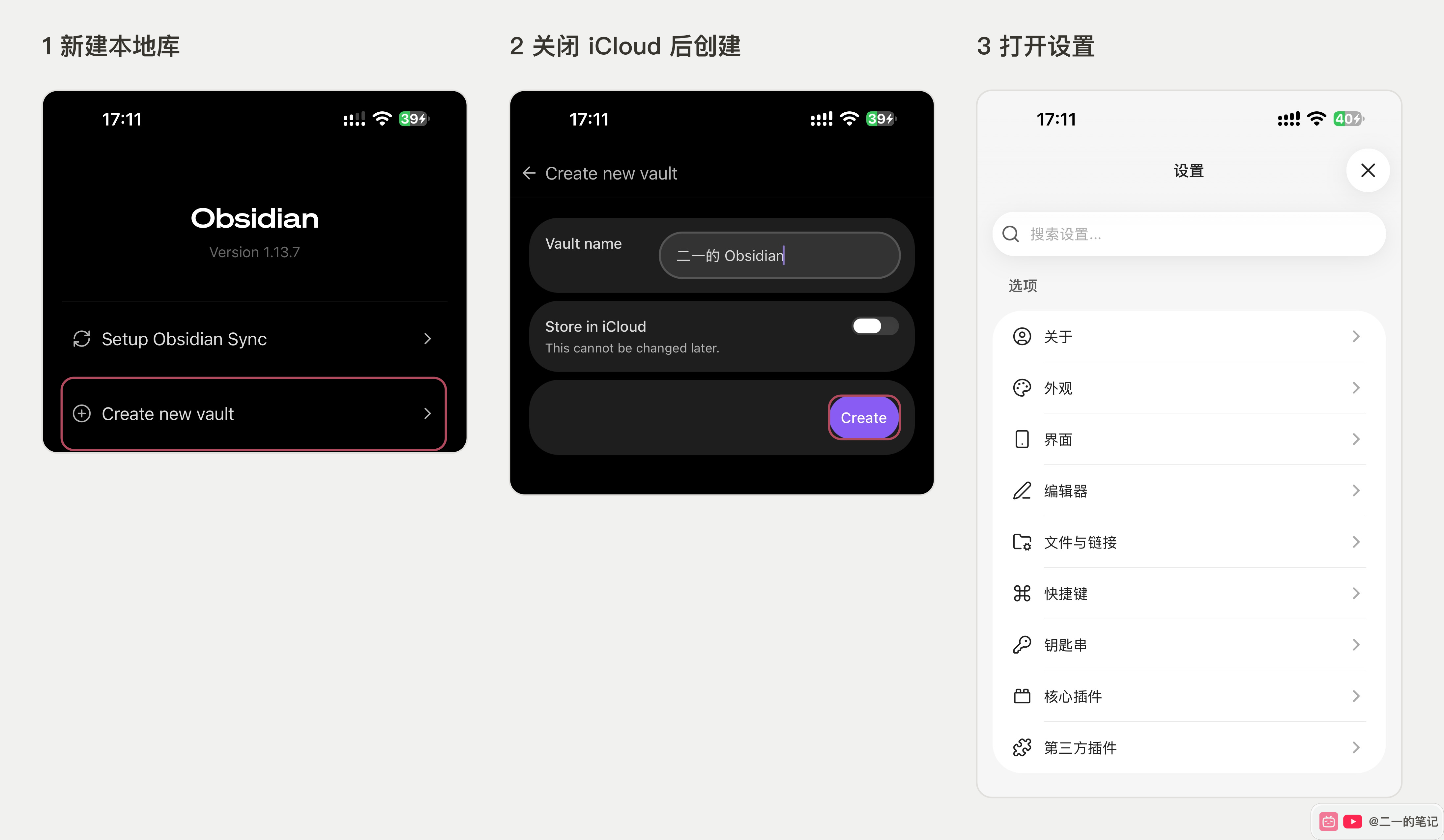
2. Sign in with the same account
Scroll down in Settings, open Sync, and tap Log in. Use the same Obsidian account that has your Sync subscription on your computer. If Sync is missing, enable it under Core plugins first. The email field is redacted in the screenshot.
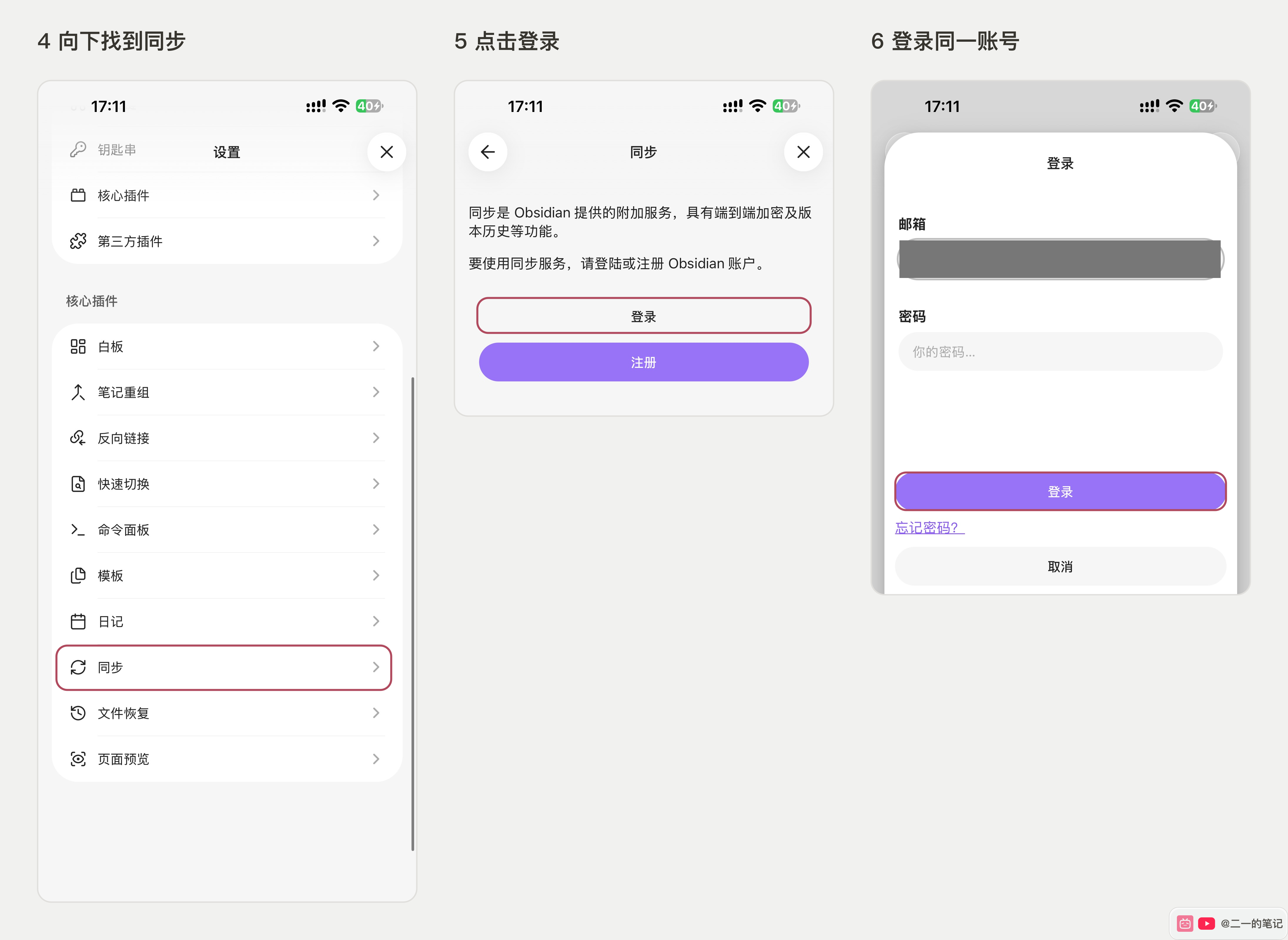
3. Connect the existing remote vault
Tap Choose beside Remote vault, then Connect beside the vault already synced from your computer. Select the existing remote vault instead of creating another one.
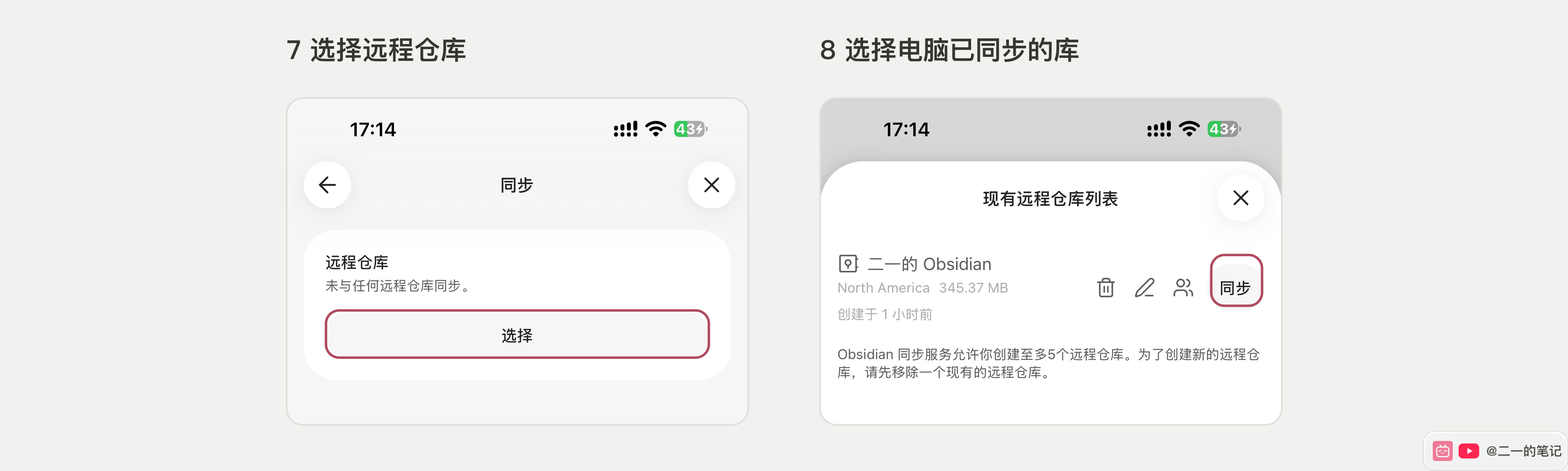
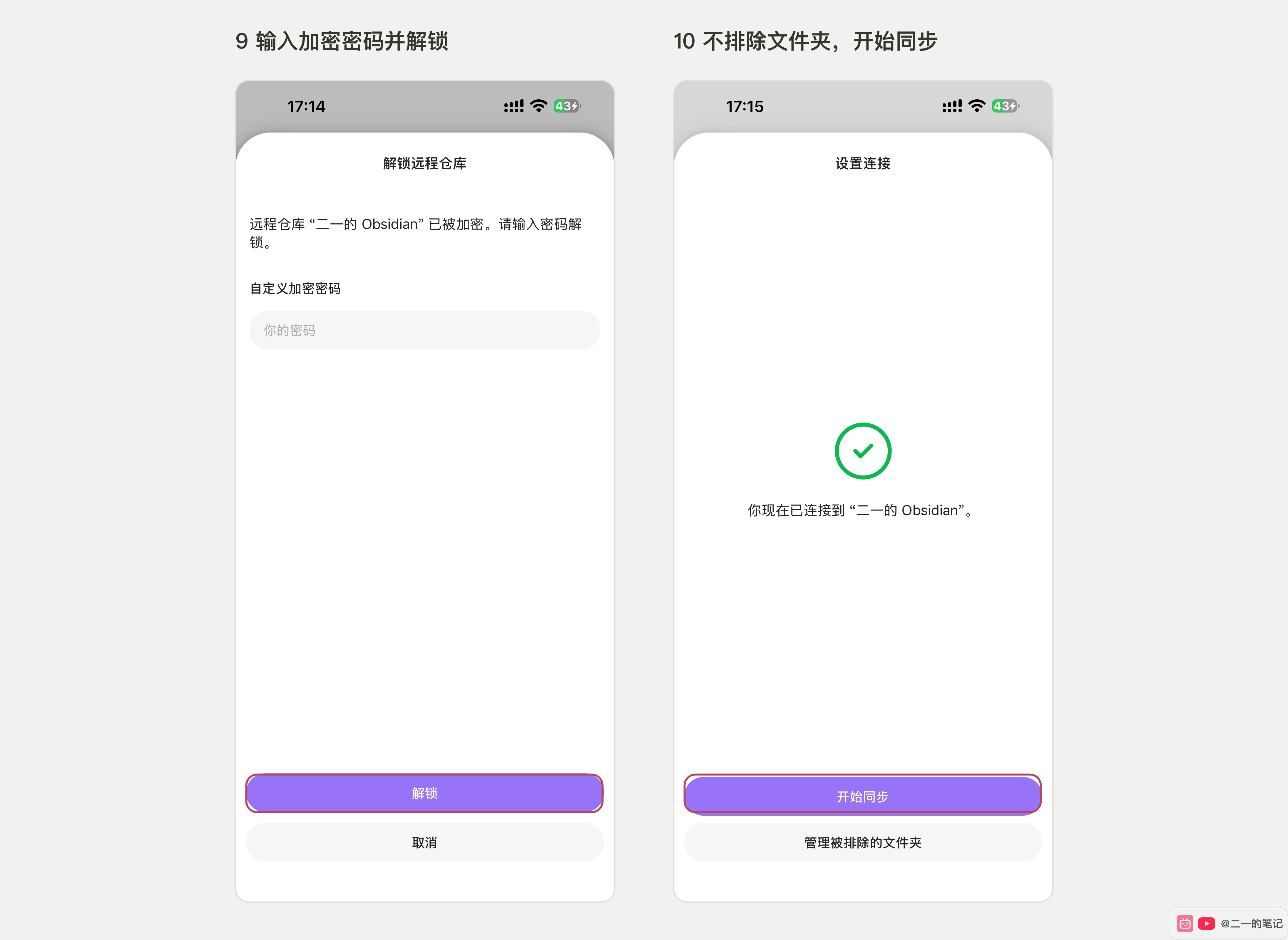
Enter the encryption password you set when creating the remote vault and tap Unlock. This is separate from your account password. FLO.W Core users should exclude no folders and tap Start syncing. The green check in this connection dialog confirms the connection; it does not mean every file has finished downloading.
4. Enable file and plugin sync
In the phone’s Sync settings, enable Sync all other types and Installed community plugins. When the confirmation appears, verify this is your own trusted vault and allow plugin sync. Leave Active community plugin list off for now and turn it on after you enable FLO.W Core in step 5; in the reverse order, community plugins on your other devices get turned off. Check these options on the phone separately; the screenshot shows all three turned on at the end.
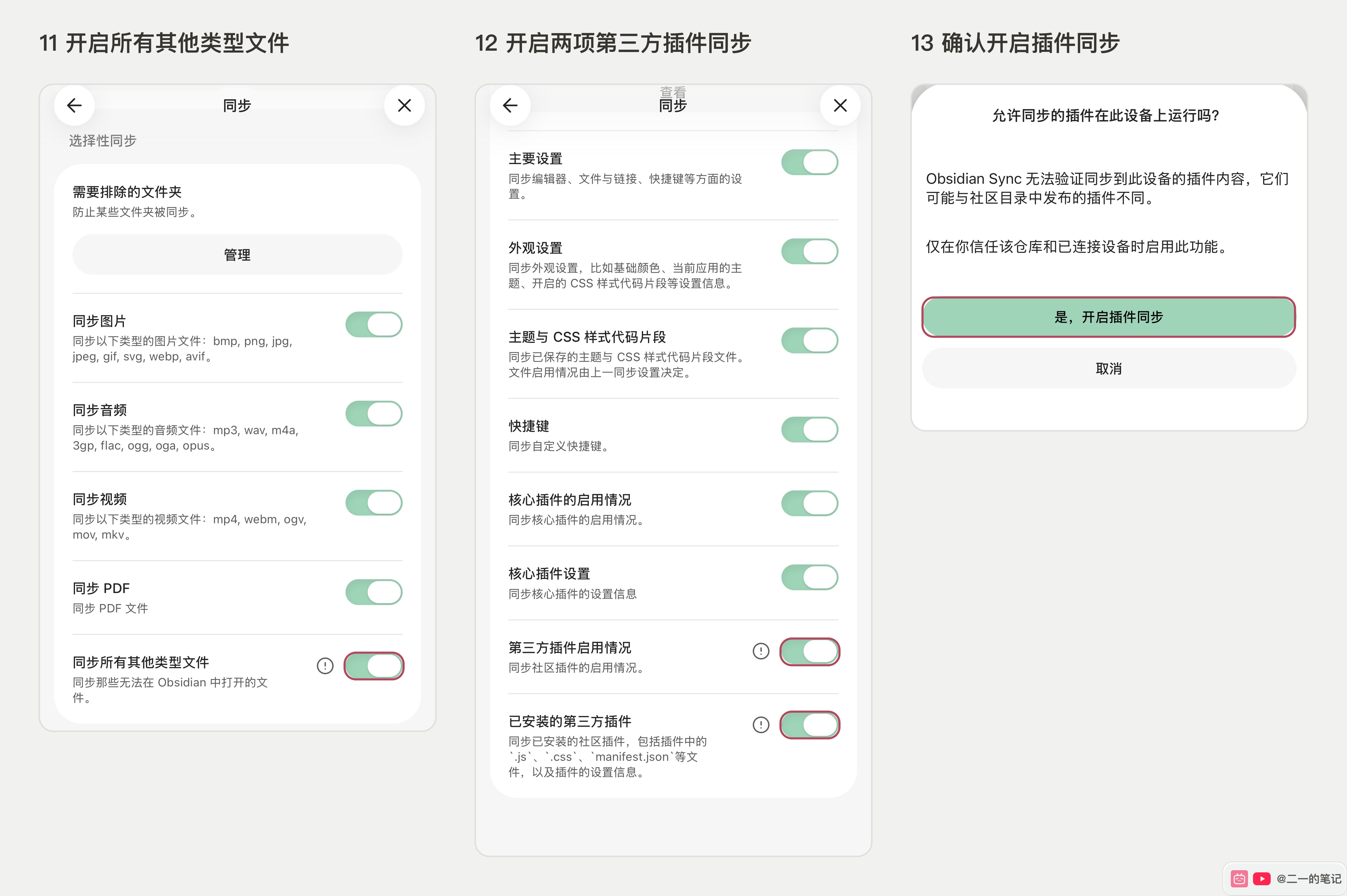
Keep Obsidian open until the phone finishes syncing, then check your notes and plugins using the next section. Standard has a 5 MB per-file limit. A file reported as File too large still cannot sync; these switches do not bypass that limit.
For other platforms, sign in with the same account, select the same remote vault, and check the sync options. Back up any existing local content before connecting, because local and remote content may merge.
5. Leave Restricted mode, refresh, and enable Core
After Sync finishes on iPhone, you still need to leave Restricted mode manually. Enabling plugin sync does not allow community plugins to run on the phone automatically.
- Open Settings → Community plugins and tap Turn on community plugins (「退出受限模式」 in the screenshot).
- If the page already offers to enable Restricted mode, it is currently off. Do not enable it again.
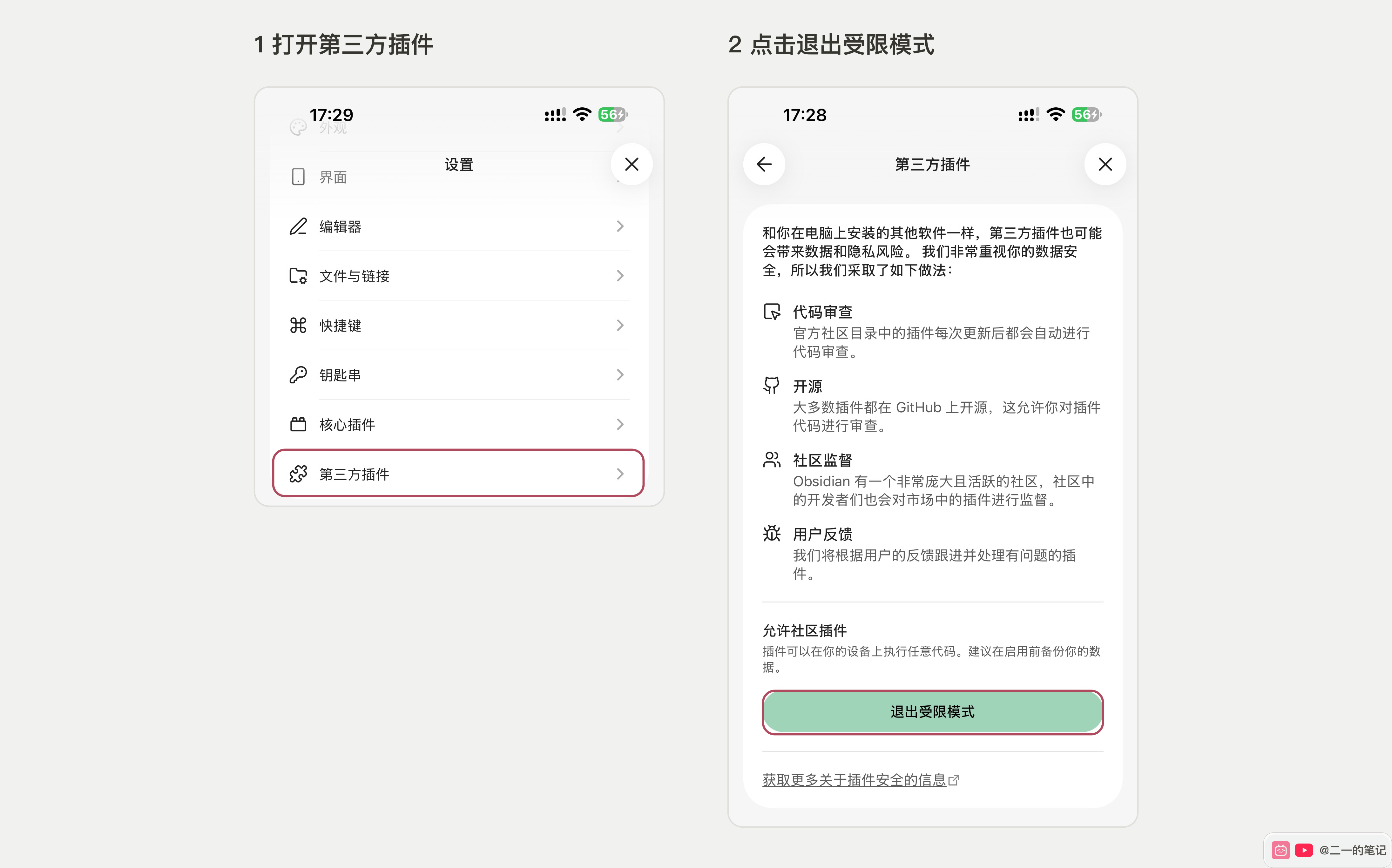
- Tap the refresh icon beside Installed plugins. The list may still say zero plugins or no plugins installed after you leave Restricted mode, even when the files have synced. Refresh the list first.
- Find FLO.W Core and turn on its switch. Green means enabled. Other plugins are blurred in the screenshot.
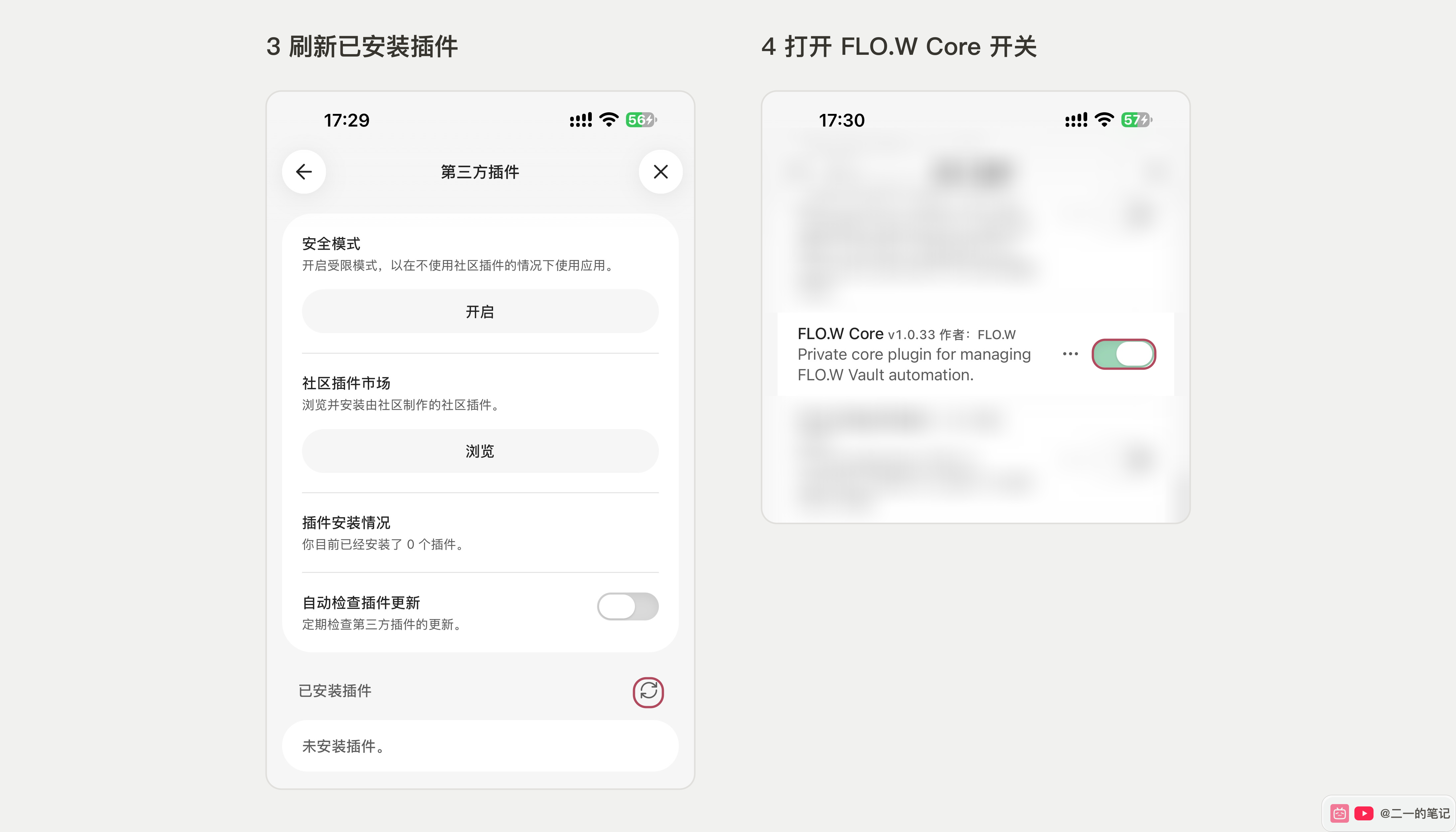
- Return to Settings → Sync and turn on Active community plugin list.
If Core is still missing after refreshing, check the sync options and search the log for File too large. An empty list alone does not prove sync failed.
Confirm Sync Worked
A green check mark in the bottom-right corner means this device has finished syncing with the remote vault. Wait for the green check before syncing on the other device.

Click the green check and open the sync log to see the “Fully synced” entry. If the log is long, enter Fully synced in the filter and check the timestamp to confirm it belongs to the current sync.
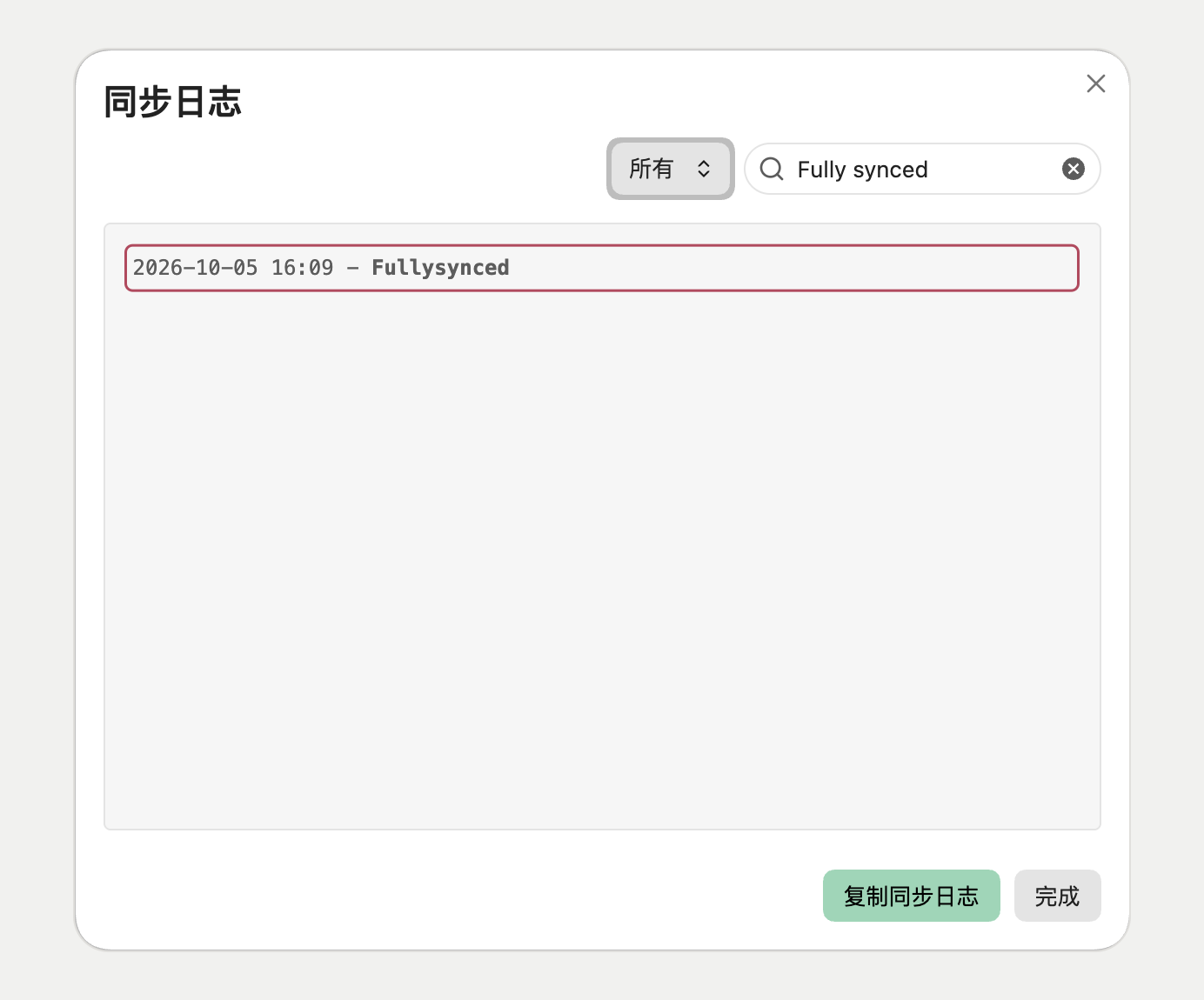
If a plugin is missing on your phone, search the sync log for oversized files:
- Click the sync icon in the bottom-right corner of desktop Obsidian and open the sync log
- Select “All” and enter
File too largein the filter; clearFully syncedfirst if it is still there - Search only for
File too large, without a size. For example,File too large to sync (9.10 MB, max 5.00 MB)means the file is 9.10 MB, exceeding the allowed 5.00 MB, so it cannot sync - Check the timestamp and filename. If it points to the missing plugin’s
main.js, address that plugin’s size limit; an image or PDF entry concerns that attachment instead
No matches only means the current log contains no matching entries. It does not confirm that every file has synced.
A simple test is more reliable:
- Create a test note on Mac
- Wait for the bottom-right sync status to finish
- Open Obsidian on your phone or Windows device
- Wait for sync to finish and check whether the test note appears
- Edit one sentence on the second device, then return to Mac and confirm the change syncs back
This verifies the full loop, including upload, download, conflict handling, and local writing.
FAQ
Can Obsidian Sync Be Used Together With iCloud?
Not for the same vault. You can sync Vault A with iCloud and Vault B with Obsidian Sync, but do not let the same vault be managed by two sync services.
Is The Standard Plan Enough?
For text notes, a few images, and one main vault, Standard is usually enough. Watch the 1 GB storage limit and the 5 MB file size limit. Large PDFs, videos, recordings, and many original images can fill it quickly.
Standard has a 5 MB limit per file, including plugin files. Some plugins have a main.js larger than 5 MB. Even with plugin syncing enabled, that file may not reach the other device, leaving the plugin missing or unable to load. Check the sync log and the file size, then consider Plus, which allows files up to 200 MB, or install the plugin on the other device using its official instructions. Enabling “Sync all other types” does not bypass the size limit. Official plan limits
What Happens If I Forget The Encryption Password?
You must save the encryption password yourself. If you forget it, remote data cannot be recovered. Notes on your local device still remain as long as the local vault is still there, so you can create a new remote vault and sync again from the local copy.
Do Plugins And Themes Sync?
Sync can sync themes, CSS snippets, hotkeys, core plugin lists, and some settings. Community plugin sync needs to be enabled separately, and not every plugin handles setting changes the same way. If a theme or plugin does not take effect immediately on a new device, restarting Obsidian often helps.
Who Is Official Sync Best For?
Official sync is the easiest choice if you want one Obsidian vault to work steadily across multiple devices. The tradeoffs are the subscription cost and clear storage limits.
If you like tinkering, want full control over the sync chain, or already need Git version management, Git, Syncthing, or WebDAV may suit you better. The main value of official sync is reducing maintenance so you can focus on the notes themselves.
Related Reading
More Posts
Why Obsidian needs a clearer work template
This Obsidian template brings projects, tasks, notes, and reviews into a local Markdown workflow.


Obsidian Git Sync Tutorial: GitHub Backup, Plugin Setup, and Multi-device Pull Workflow
This tutorial shows how to sync an Obsidian vault with GitHub and the Obsidian Git plugin, then pull the same vault on Windows, Android, and iPhone.

Obsidian 2026 剪藏插件 Web Clipper 最新安装教程
从 Chrome 商店或压缩包安装 Obsidian Web Clipper,设置保管库和剪藏模板,保存第一篇文章。