Obsidian Nutstore Sync Tutorial: Use Nutstore Sync For Multi-device Sync
Nutstore sync is recommended for paid users or users starting with a new vault containing few files. Bulk initial sync of existing vaults risks rate limits, 503 errors, and failed syncs, even on paid plans.
We recommend Nutstore sync for paid users or users starting with a new vault containing few files. The free plan allows 1GB uploads and 3GB downloads per month. WebDAV allows 600 requests per 30 minutes for free accounts and 1500 for paid accounts. Avoid syncing an existing vault with many files all at once. Bulk requests can trigger rate limits, 503 errors, and failed syncs, even on a paid plan. See Nutstore’s official request limits.
Sync Logic
This method uses the Nutstore Sync plugin in Obsidian. It uploads the current Obsidian vault to your Nutstore account. Other devices then install the same plugin, sign in with the same account, and pull the vault back down.
The main benefit is simple setup. You do not need to enter a WebDAV URL or configure object storage. If you already have a paid Nutstore account, the setup is low-friction.
The limits are clear: it is not real-time sync like LiveSync; editing from multiple devices can still create conflicts; the free plan has monthly upload and download limits; large vaults or very frequent syncs may hit request limits or 503 errors.
If you are still comparing options, read “Other Sync Methods” at the end first, then come back to this Nutstore setup.
Setup Tutorial
Create A Nutstore Account
Prepare a Nutstore account first. For an existing vault, we recommend a paid plan. The free plan is only recommended when starting with a new vault containing few files; check traffic and request quotas before syncing. Keep the browser signed in for the Obsidian plugin authorization step.
Nutstore sign-up page:
https://www.jianguoyun.com/d/signup
Install The Nutstore Sync Plugin
In Obsidian’s community plugin marketplace, search for Nutstore Sync and install it.
If you have not installed community plugins before, see this first: Obsidian plugin installation tutorial.
After installing the plugin, click the login button in the plugin panel. It will open the Nutstore web page. Confirm that it is your account, then authorize the plugin.

After authorization, it returns to Obsidian automatically. Click the sync button in the left sidebar and run one manual sync first.
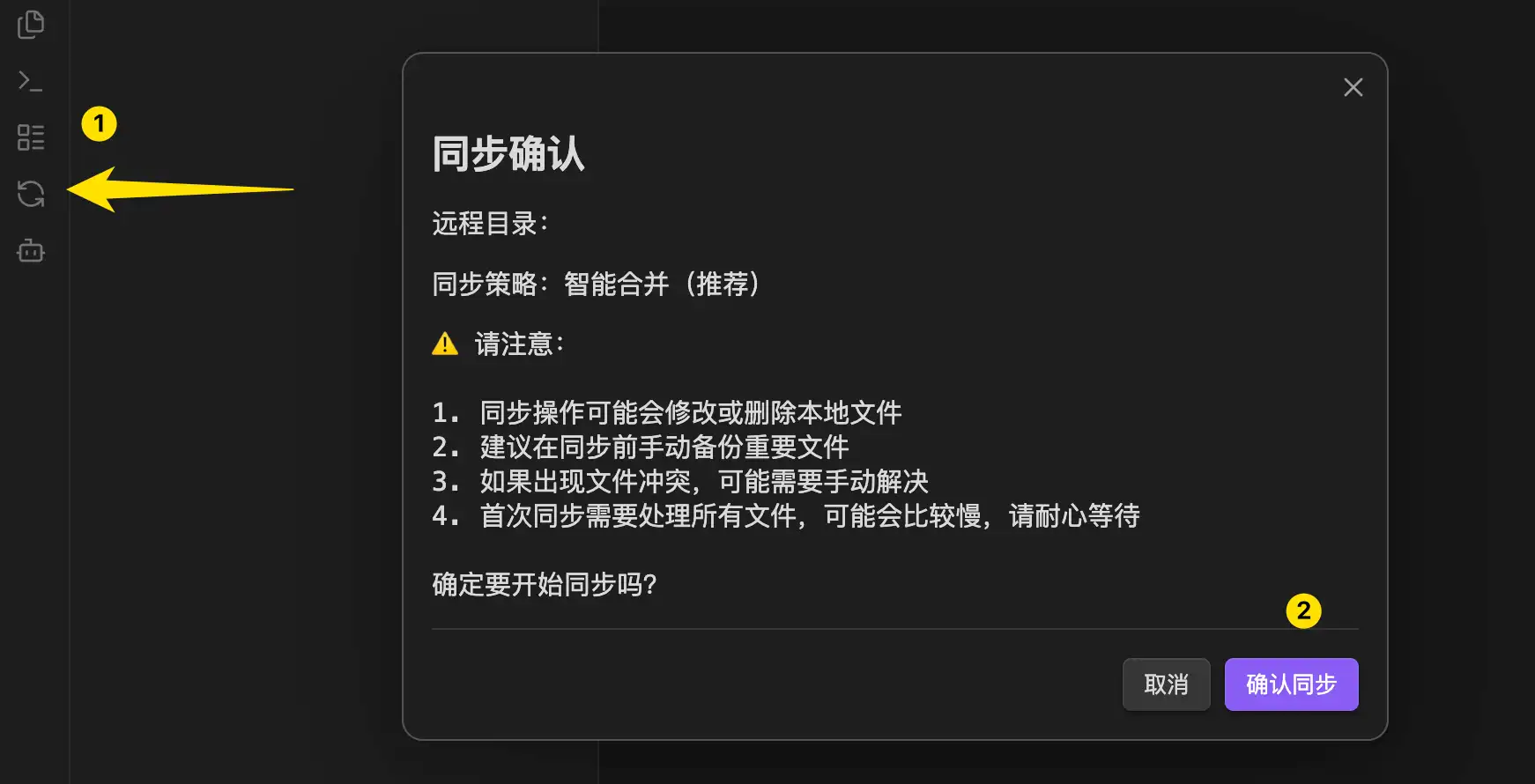
The first sync shows a confirmation dialog. It warns that syncing may modify or delete local files, and that the first sync can take longer. Make sure your vault has been backed up, then confirm the sync.
After the sync finishes, open Nutstore on the web and check whether your Obsidian vault files are there. If they are, the first computer is set up correctly.
Disable The Sync Confirmation Dialog
If you do not want to confirm every manual sync, turn off the “confirm before sync” setting.

I suggest keeping it on while testing. After you confirm the account and sync path are correct, you can turn it off.
Should You Sync .obsidian Settings
By default, Nutstore Sync syncs notes and attachments, while leaving the .obsidian settings folder alone. Plugin settings, themes, and snippets will not move to the other device.
This default is safer. When multiple devices run Obsidian, syncing plugin and theme files can make conflicts more likely.
If you want plugins and themes to stay closer across devices, change “configuration folder sync” to “sync all”. This option is marked experimental, so test it with a temporary vault before using it on your main vault.
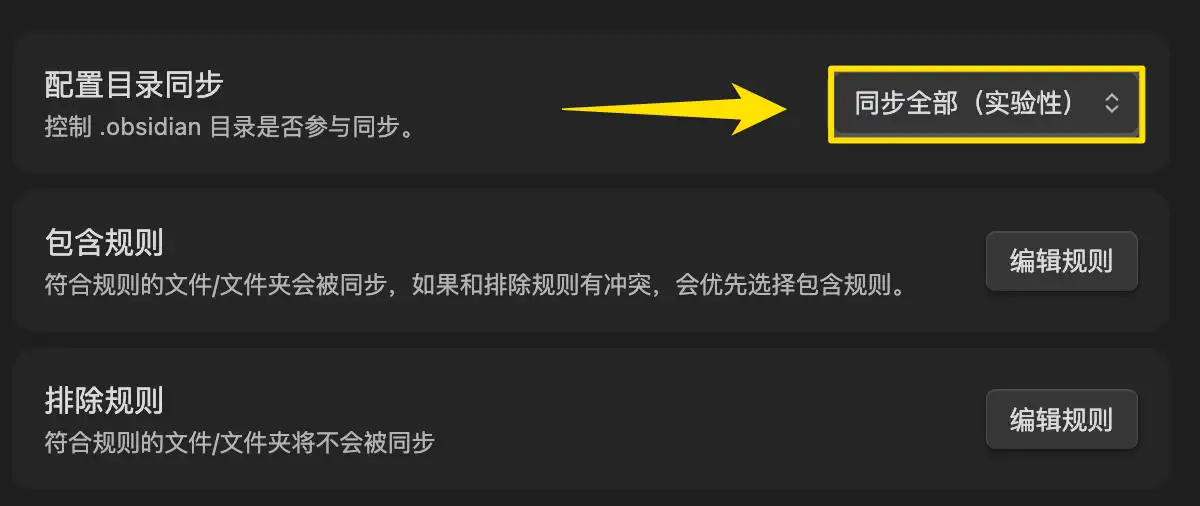
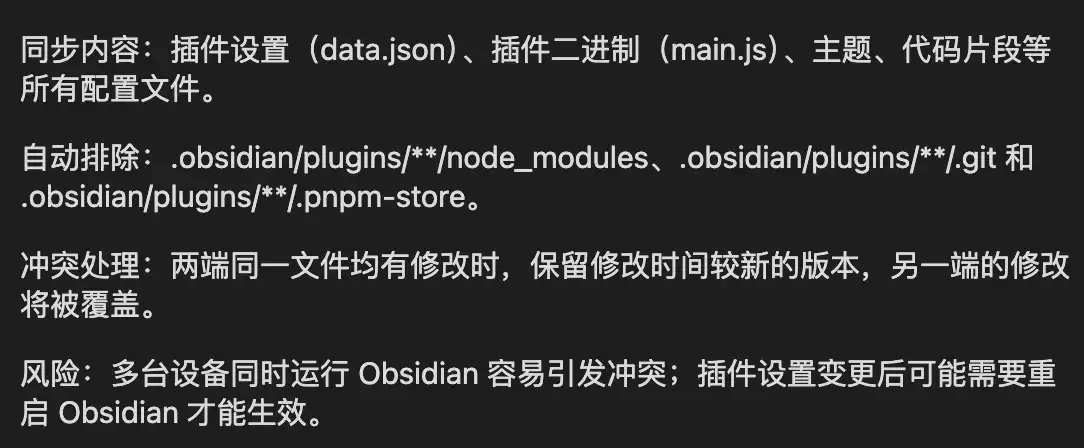
After “sync all” is enabled, the plugin syncs plugin settings, plugin binaries, themes, snippets, and related configuration files. It also excludes folders that should not be synced, such as node_modules, .git, and .pnpm-store inside plugin folders.
Sync To Other Devices
The same process applies to other devices:
- Install Obsidian.
- Open an empty vault.
- Install the
Nutstore Syncplugin. - Sign in with the same Nutstore account and authorize it.
- Run one manual sync to pull the Nutstore content down locally.
If your vault is large, do not let the plugin do a full first sync from zero. A smoother approach is to copy the whole vault to the new device first, using a cable, local network transfer, or another method. Then let Nutstore Sync handle later incremental changes. This reduces the initial data transfer, but the plugin may still scan and check many files, so it does not guarantee that request limits will be avoided.
Pricing And Limits
The free plan is only recommended when starting with a new vault containing few files. Its 1GB upload and 3GB download allowances are monthly traffic quotas. Sync stops when either runs out. Initial downloads on multiple devices, images, PDFs, plugins, and settings can use them up quickly. See Nutstore’s official limits.
Paid plans have no upload or download traffic limit for normal use, but storage and API request limits still apply. The screenshot below shows the plan at the time of writing; check Nutstore’s pricing page for current prices and allowances.

Nutstore’s published WebDAV limits allow 600 requests per 30 minutes for free users and 1500 for paid users. These are request counts, not file counts: directory scans, file checks, uploads, and downloads can each generate requests.
Bulk initial sync of an existing vault can generate many requests in a short time, even when its total size is small. Avoid syncing a vault with many files all at once, even on a paid plan. If you see 503 errors, pause syncing and check the logs rather than repeatedly retrying. Remotely Save’s official documentation also warns that Nutstore API limits can prevent vaults with many files from syncing properly.
My Take
Nutstore Sync is easy to configure. Once authorization is done, it works without much extra setup, and the speed and stability are acceptable. It suits users with a paid Nutstore plan or a new vault containing few files who do not want to set up WebDAV or Syncthing.
The part I dislike is that the plugin includes a full AI assistant settings section. For a sync plugin, doing sync well should be enough. If you only need syncing, ignore the AI settings and leave them unset.

Who It Fits
If you have a paid Nutstore account or are starting with a new vault containing few files, this setup can simplify multi-device Obsidian sync. It is simpler than WebDAV sync or Syncthing sync, and suits small vaults with ordinary notes and attachments. Free users with an existing vault containing many files should consider OneDrive, iCloud, or Syncthing. A paid plan still does not make bulk initial sync free of rate limits.
If you need real-time sync, have a large long-term vault, or want full plugin and theme settings synced across devices, be cautious. It works, but it is not ideal for frequent editing from multiple devices at the same time.
Other Sync Methods
If you are still comparing options, read these tutorials next:
More Posts

Obsidian 2026 Plugin Installation Guide: Marketplace, BRAT, and Mobile
This guide explains the main sources of Obsidian plugins, how to install community plugins on desktop and mobile, and how to use BRAT for GitHub plugins.


Obsidian 模板开发日志(一):下定决心
这篇开发日志记录我为什么开始认真开发 FLO.W Obsidian 模板,以及我对 Notion、AI 时代笔记价值和 Obsidian 模板设计的重新思考。

Obsidian 11 种主流同步方案对比:设备、费用、难度和适合人群
这篇文章整理了 Obsidian Sync、iCloud、百度网盘、OneDrive、坚果云、Remotely Save、Fast Note Sync、LiveSync、Syncthing 和 Git 等 11 种主流同步方案,按费用、平台、手机端、难度、版本历史和适合人群做对比。