Obsidian OneDrive Sync Tutorial: Use Remotely Save for Multi-device Sync
This tutorial uses the Remotely Save plugin with OneDrive Personal to sync an Obsidian vault across Mac, Windows, iPhone, and Android.
Sync Logic
The first device uploads the Obsidian vault to OneDrive. Other devices use the same OneDrive account to pull the vault back down.
This syncs the whole Vault folder, not individual notes. Before starting, back up your original vault. It is better to test with a temporary vault before connecting your real vault.
If you are still comparing sync methods, read “Other Sync Methods” at the end of this article first, then come back here for the OneDrive setup.
Setup Tutorial
Register And Sign In To OneDrive
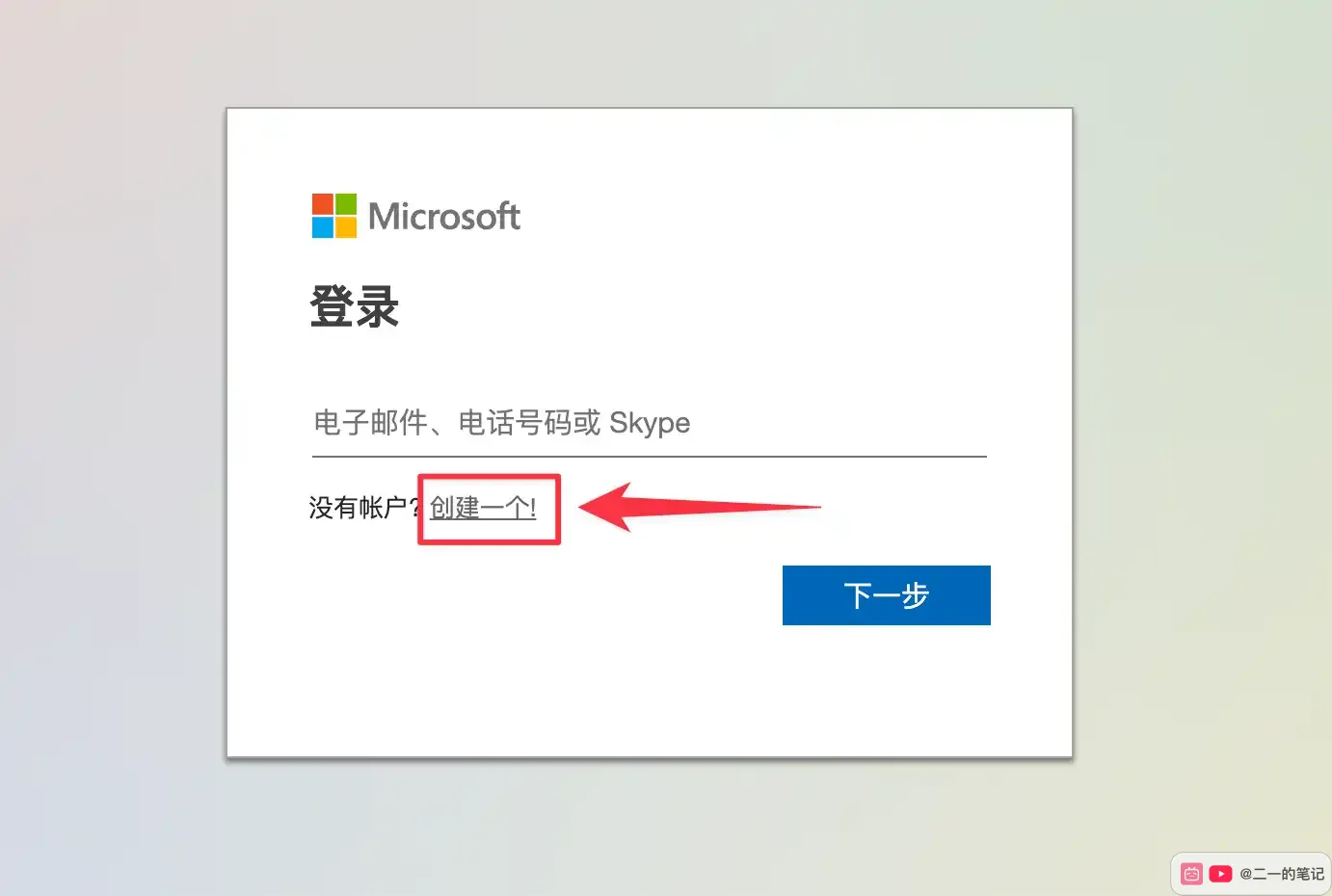
Prepare a OneDrive Personal account that can sign in normally. If you already have a Microsoft account, sign in directly. If not, click “Create one!”.
OneDrive sign-in page:
https://onedrive.live.com/login?culture=zh-cn&country=cn
Install Remotely Save
Install the Remotely Save plugin in Obsidian on every device. If you have not installed community plugins before, see this first: Obsidian plugin installation tutorial.
After installation, open the plugin settings and select OneDrive (Personal) under “Choose remote service”.

Authorize On Mac
Configure the first vault on Mac. After selecting OneDrive Personal, click the authorization button.

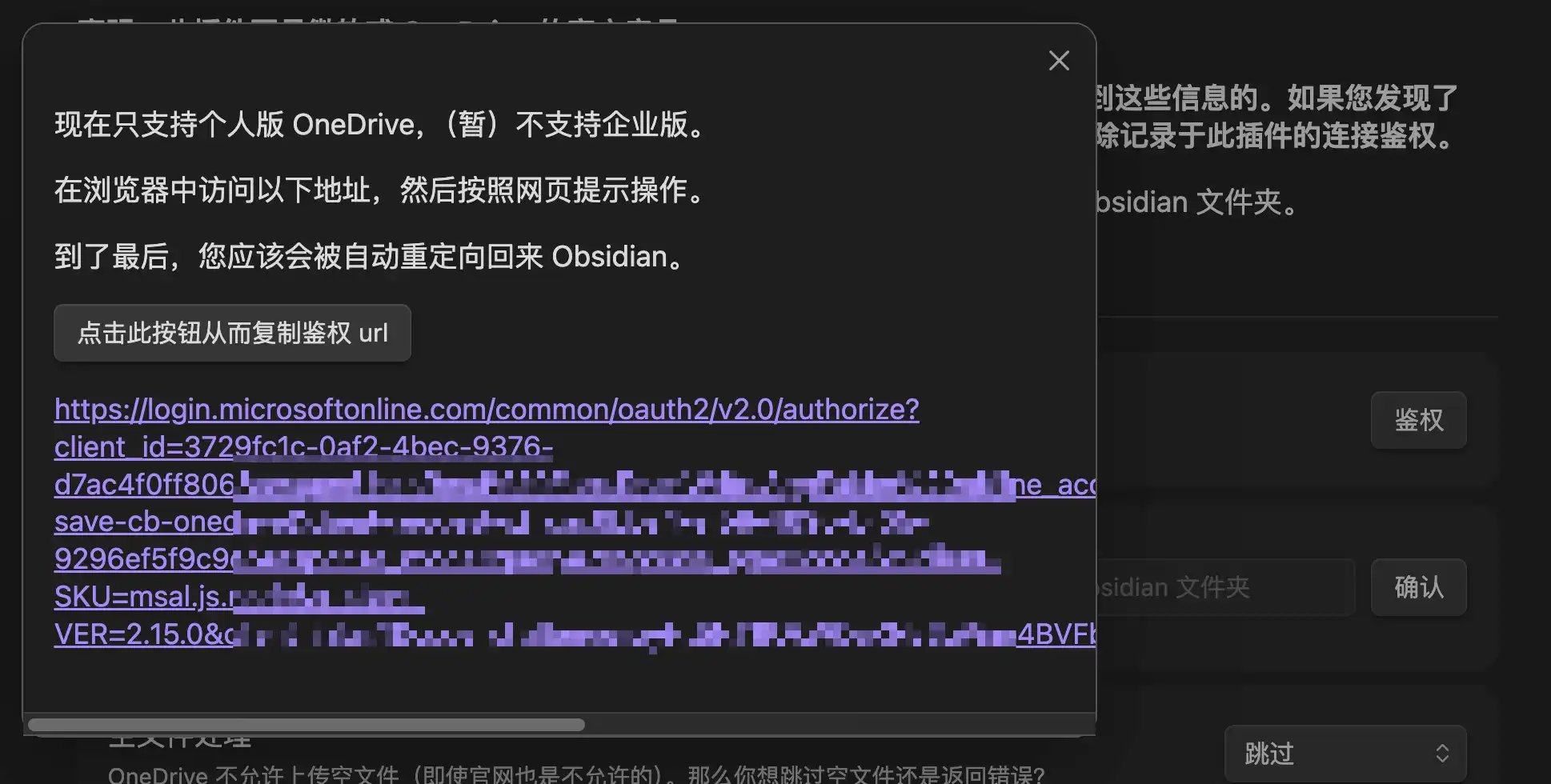
The plugin will show a Microsoft authorization URL. Normally it opens the browser automatically. If it does not, copy the link and open it manually.
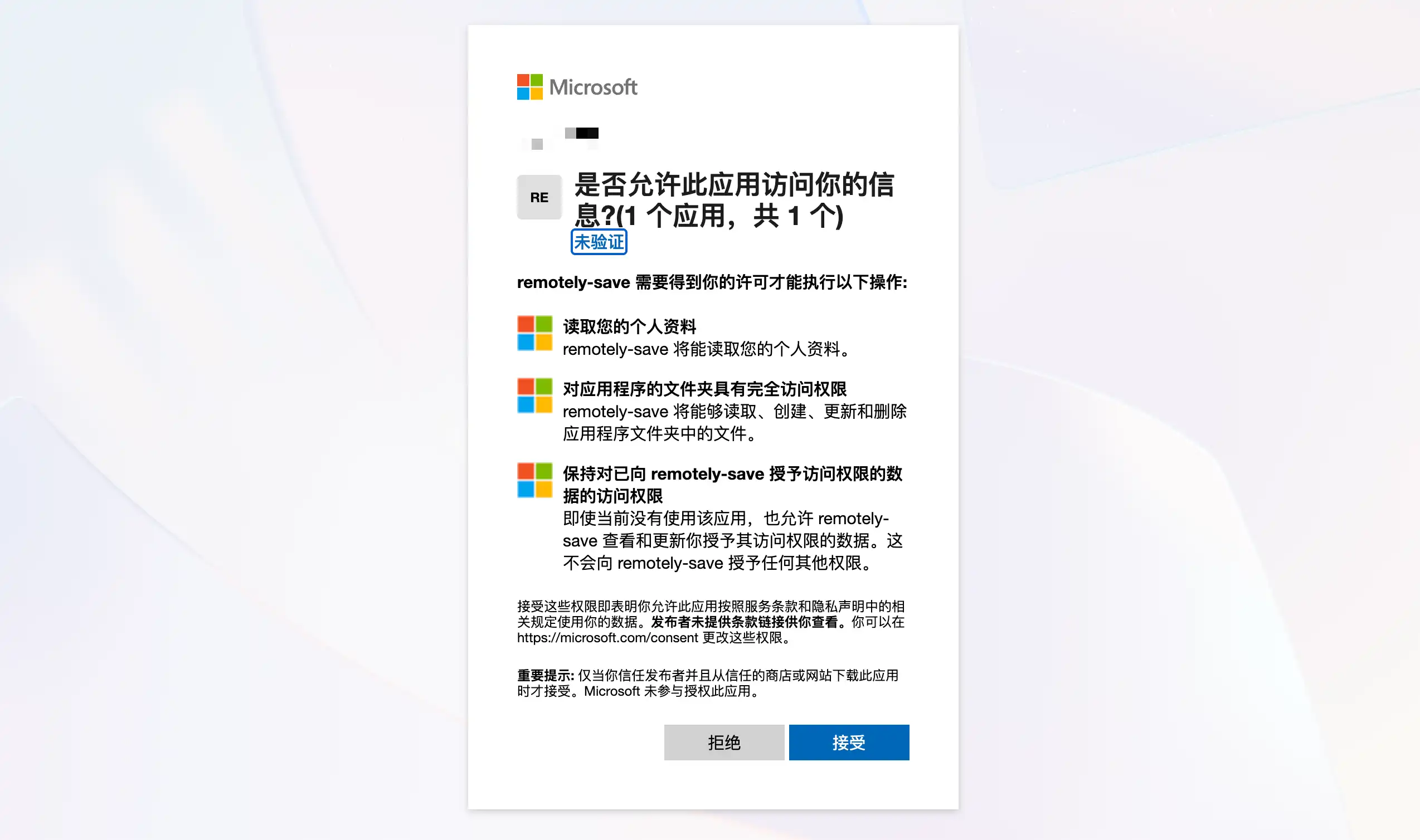
In the browser, confirm that the account is yours, then click “Accept”.
After authorization, the browser returns to Obsidian. When you see “Connecting OneDrive”, wait for it to finish and do not close the dialog.

After the connection succeeds, OneDrive will show a remotely-save folder under “Apps”. The sync data will be stored there.

Next, run one manual sync in Obsidian to upload the current vault to OneDrive. After confirming there is no error, configure automatic sync. In this example, it runs every 10 minutes and once 30 seconds after Obsidian starts.

Sync To Windows, iPhone, And Android
On a new device, create an empty folder first. This folder will receive the Obsidian vault.
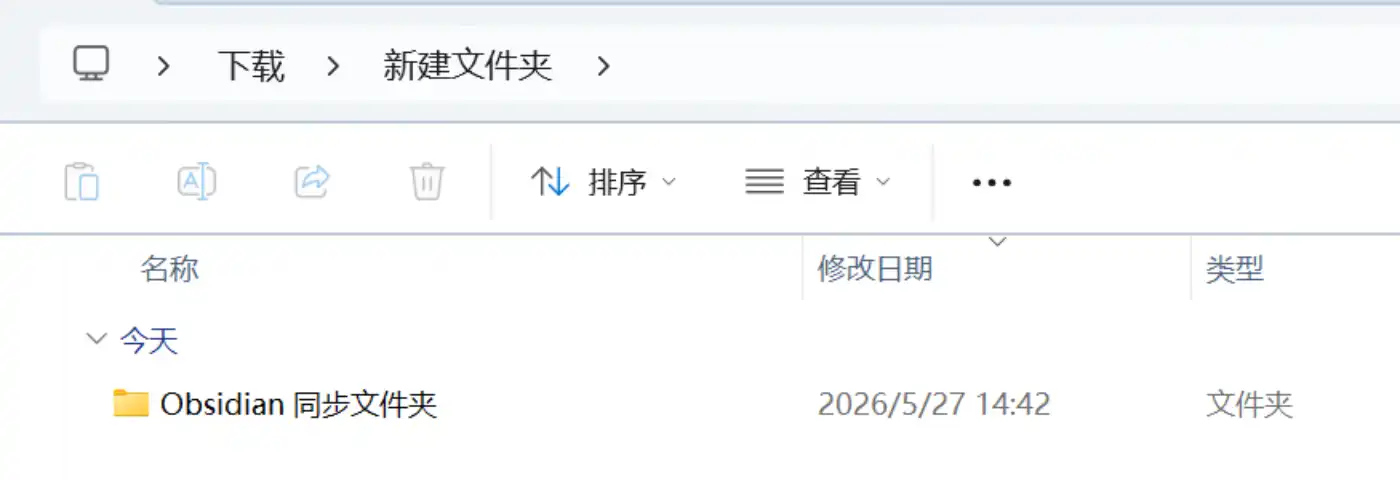
Open this empty folder with Obsidian, then repeat the same process:
- Install Remotely Save.
- Select
OneDrive (Personal). - Authorize with the same OneDrive account.
- Run one manual sync to pull the OneDrive content down locally.
Windows, iPhone, and Android follow the same logic. If a mobile system asks for file access permission, allow it.
Afterward, keep one habit: before leaving a device, sync once; after switching to another device, sync before editing. If multiple devices edit the same note at the same time, conflicts can still happen.
Who This Is For
OneDrive Personal includes 5GB of free storage, which is usually enough for text-heavy vaults. If your vault contains many images, PDFs, or videos, pay attention to storage usage.
This setup suits users who already have a OneDrive account and want to sync Obsidian across Mac, Windows, iPhone, and Android. As long as the device can install Remotely Save and sign in to a Microsoft account, the same workflow can be used. The cost is low, and it is simple enough for daily use.
Compared with WebDAV sync or Syncthing sync, OneDrive is easier to configure. The tradeoffs are clear: it is not real-time sync like LiveSync, it depends on Microsoft’s cloud drive, sync conflicts can happen when multiple devices edit at the same time, and the Remotely Save plugin has not been updated for a long time, so future maintenance is uncertain.
FAQ
Can OneDrive Business be used?
This article only covers OneDrive Personal. Work or school Microsoft 365 accounts may fail authorization, be permission-limited, or be blocked by an administrator.
Can I rename the remotely-save folder?
I do not recommend it. This folder is the app folder created by the plugin. If you rename or move it, the plugin may not find the original sync location.
What should I check first if sync fails?
Check these first:
- Whether every device uses the same OneDrive account.
- Whether Remotely Save is set to
OneDrive (Personal)on every device. - Whether the OneDrive web page shows
Apps/remotely-save. - Whether the new device opened an empty vault first, then pulled content from OneDrive.
Other Sync Methods
If you are still comparing options, continue with these tutorials:
More Posts
Obsidian Syncthing Sync Tutorial: Sync Mac, Windows, Android, And iPhone
Obsidian Syncthing sync tutorial: use Syncthing and Syncthing-Fork to sync across Mac, Windows, Android and iPhone, covering folder IDs, pairing and sharing.


Obsidian 剪藏文章后自动下载网页图片的方法
用 Obsidian 自带命令下载剪藏图片,或设置 Auto Download Images After Web Clipping 插件自动保存图片到本地附件文件夹,并批量补下旧文章的图片。
Obsidian 2026 Feiniu NAS Sync Tutorial: WebDAV + Remotely Save Setup Guide
This Feiniu NAS sync tutorial uses FN-NAS WebDAV and FN Connect as an example to show how to configure Obsidian Remotely Save on desktop and mobile.